# Sistemas de Administración de Contenidos (CMS)

Capítulo destinado a contenido relacionado a CMSs como ser wordpress, drupal, joomla y otros

# Guía de seguridad wordpress

<span style="font-size: 12pt; font-family: 'Liberation Serif'; color: rgb(0, 0, 0); background-color: transparent; font-weight: 400; font-style: normal; font-variant: normal; white-space-collapse: preserve;"><span style="border-width: initial; border-style: none; display: inline-block; overflow: hidden; width: 357px; height: 380px;">![](https://lh7-us.googleusercontent.com/docsz/AD_4nXfdMIO9oH16pi8BS8sgpjhX-NJ5Dny3lI0jLaWYN1BpIkBMMspCl9md6c56UFb4i1tYVLeHqZ3LL4jhtr3mheLKdDyduOExbw3tbg-Gbd_8ZafZIaoYXqmGZ8IIxQpY3D_XwpNA7jfWOgLSidjs9E2G04g?key=vzVrpO_CSA8U7fBe02-zhA)[![Captura desde 2024-06-20 18-19-22.png](https://www.cgii.gob.bo/bookstack/uploads/images/gallery/2024-06/scaled-1680-/QmmGsINm2pFbMDqG-captura-desde-2024-06-20-18-19-22.png)](https://www.cgii.gob.bo/bookstack/uploads/images/gallery/2024-06/QmmGsINm2pFbMDqG-captura-desde-2024-06-20-18-19-22.png)</span></span>

#### <span id="bkmrk--2" style="font-weight: normal;"></span>

#   


#### 1. Introducción

Wordpress es un sistema de gestión de contenido (CMS, Content Management System), que permite crear sitios web, su popularidad ha logrado que resulte muy atractivo para los “ciberatacantes”, con el fin de explotar vulnerabilidad

#### 2. Asegurando Wordpress

Para mitigar el riesgo de ataques a Wordpress, recomendamos las siguientes buenas prácticas de seguridad.

##### 2.1. Configurar el control de acceso de usuarios

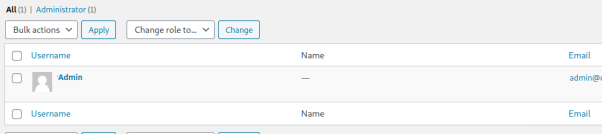
Ingresar al panel de administración de usuarios del sitio web: https://\[midominio.gob.bo\]/wp-admin/users.php y eliminar a los usuarios administradores que no se usan actualmente:

[![AccesoDeUsuarios.png](https://www.cgii.gob.bo/bookstack/uploads/images/gallery/2023-03/scaled-1680-/QnJDKNv5tWG6xTvw-accesodeusuarios.png)](https://www.cgii.gob.bo/bookstack/uploads/images/gallery/2023-03/QnJDKNv5tWG6xTvw-accesodeusuarios.png)
##### 2.2. Actualizar el core de Wordpress

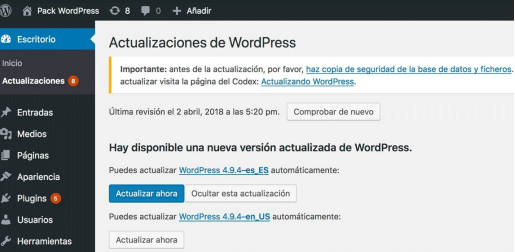
Ingresar a su sitio web https://\[mi-dominio.gob.bo\]/wp-admin/update-core.php y hacer click en el botón “Actualizar ahora”.

[![ActualizacionDelCore.png](https://www.cgii.gob.bo/bookstack/uploads/images/gallery/2023-03/scaled-1680-/jOgOf3jalg2lvFIN-actualizaciondelcore.png)](https://www.cgii.gob.bo/bookstack/uploads/images/gallery/2023-03/jOgOf3jalg2lvFIN-actualizaciondelcore.png)
##### 2.3. Actualizar los plugins de Wordpress

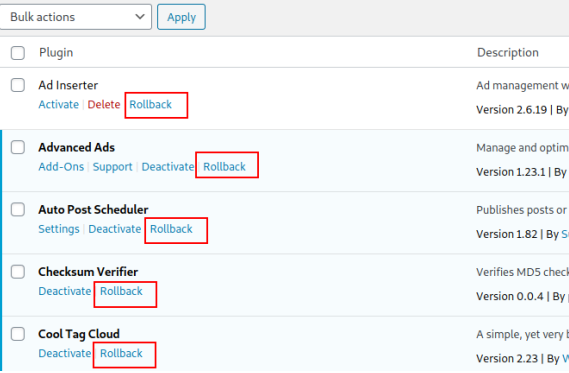
Previamente instalar y activar el plugin WP-Rollback (https://es.wordpress.org/plugins/wp-rollback/) que será útil en caso que la actualización de algún plugin no sea exitosa.

Realizar un backup de la base de datos.  
  
Ingresar al sitio https://\[mi-dominio.gob.bo\]/wp-admin/update-core.php y seleccionar todos los plugins y presionar el botón “Actualizar plugins”.

[![ActualizacionDePlugins.png](https://www.cgii.gob.bo/bookstack/uploads/images/gallery/2023-03/scaled-1680-/WDfnULcyvwdOX58J-actualizaciondeplugins.png)](https://www.cgii.gob.bo/bookstack/uploads/images/gallery/2023-03/WDfnULcyvwdOX58J-actualizaciondeplugins.png)
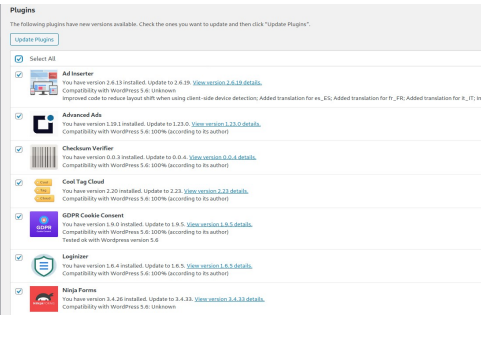
En caso de existir un error durante el proceso de actualización, realizar un ROLLBACK (https://\[mi-dominio.gob.bo\]/wp-admin/plugins.php).

[![ActualizacionDePluginsError.png](https://www.cgii.gob.bo/bookstack/uploads/images/gallery/2023-03/scaled-1680-/NDj1xODRkqwn2ZVd-actualizaciondepluginserror.png)](https://www.cgii.gob.bo/bookstack/uploads/images/gallery/2023-03/NDj1xODRkqwn2ZVd-actualizaciondepluginserror.png)
##### 2.4. Habilitar actualizaciones de seguridad automáticas

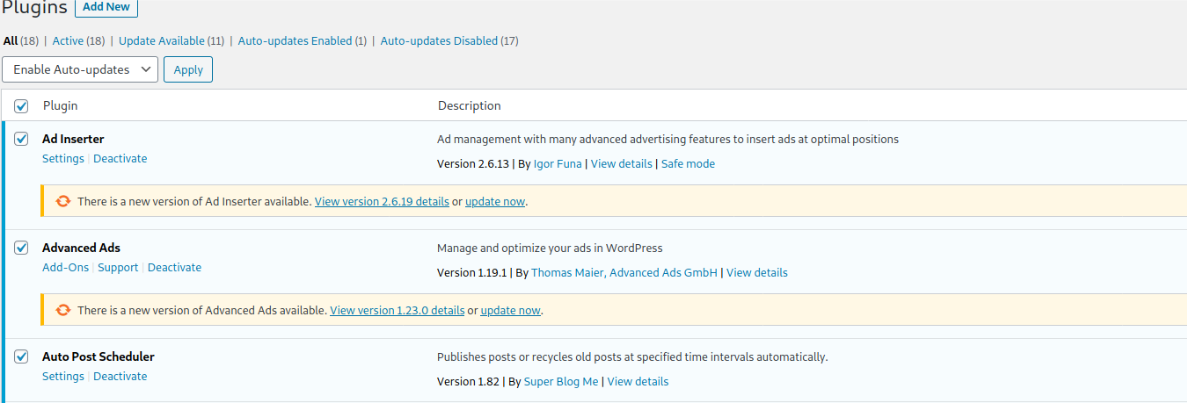
Ingresar al panel de administración https://\[mi-dominio.gob.bo\]/wp-admin/plugins.php y seleccionar todos los plugins.  
  
Seleccionar la acción “habilitar actualizaciones automáticas” y ejecutar “Aplicar”

[![ActualizacionesDeSeguridadAutomáticas.png](https://www.cgii.gob.bo/bookstack/uploads/images/gallery/2023-03/scaled-1680-/e3qReg1h48zMj2DH-actualizacionesdeseguridadautomaticas.png)](https://www.cgii.gob.bo/bookstack/uploads/images/gallery/2023-03/e3qReg1h48zMj2DH-actualizacionesdeseguridadautomaticas.png)
Borrar los themes no usados mediante la URL https://\[mi-dominio.gob.bo\]/wp-admin/themesphp

##### 2.5. Deshabilitar XML-RPC

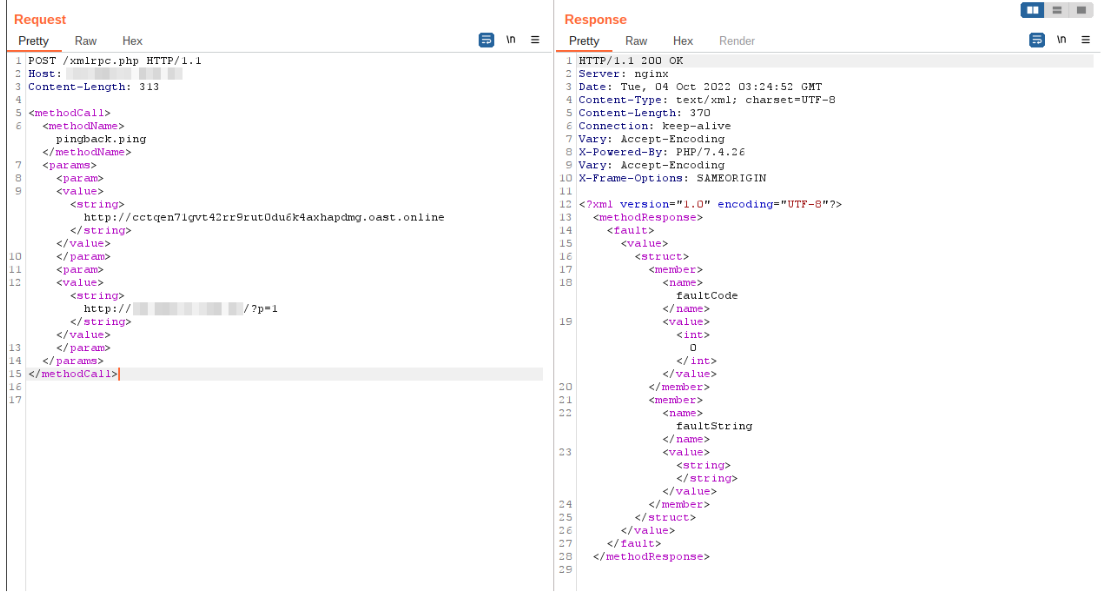
Wordpress tiene características para interactuar de forma remota con el sitio web, XML- RPC es una función de WordPress que permite la transmisión de datos con HTTP actuando como mecanismo de transporte y XML como mecanismo de codificación.  
  
En la actualidad la funcionalidad del archivo xmlrpc.php ha disminuido considerablemente y su exposición y configuración insegura representa un riesgo en la seguridad del sitio web, provocando las siguientes vulnerabilidades:

- Ataques de fuerza bruta.
- Denegación Distribuida de Servicio.
- XMLRPC pingback.ping.

[![XMLRPC.png](https://www.cgii.gob.bo/bookstack/uploads/images/gallery/2023-03/scaled-1680-/qxAMl11xNDNMbHa3-xmlrpc.png)](https://www.cgii.gob.bo/bookstack/uploads/images/gallery/2023-03/qxAMl11xNDNMbHa3-xmlrpc.png)
2.5.1. Restringir el acceso al archivo xmlrpc.php

Para restringir el acceso al archivo xmlrpc.php en apache2, se debe editar el archivo de configuración del sitio web o mediante el archivo .htaccess agregando las siguientes líneas:

```bash
<files xmlrpc.php>
	order allow,deny
	deny from all
</files>
```

Después reiniciar apache:

```bash
systemctl restart apache2
```

2.5.2. Deshabilitar la función XML-RPC

Si se determina que la función XML-RPC no es necesaria, se recomienda deshabilitarla, para ello se debe editar el archivo wp-config.php y agregar la siguiente línea:

```bash
add_filter('xmlrpc_enabled', '__return_false');
```

Otra opción para deshabilitar la función XML-RPC es instalando y activando el complemento “Disable XML-RPC”.

##### <span style="color: rgb(52, 73, 94);">2.6. Enumeración de usuarios</span>

Wordpress a través de su REST API puede exponer datos sensibles, como es el caso de los usuarios del sistema, si el sitio no está configurado de forma segura.

[![EnumeracionDeUsuarios.png](https://www.cgii.gob.bo/bookstack/uploads/images/gallery/2023-03/scaled-1680-/hSsy1ZNyOMJHfbca-enumeraciondeusuarios.png)](https://www.cgii.gob.bo/bookstack/uploads/images/gallery/2023-03/hSsy1ZNyOMJHfbca-enumeraciondeusuarios.png)
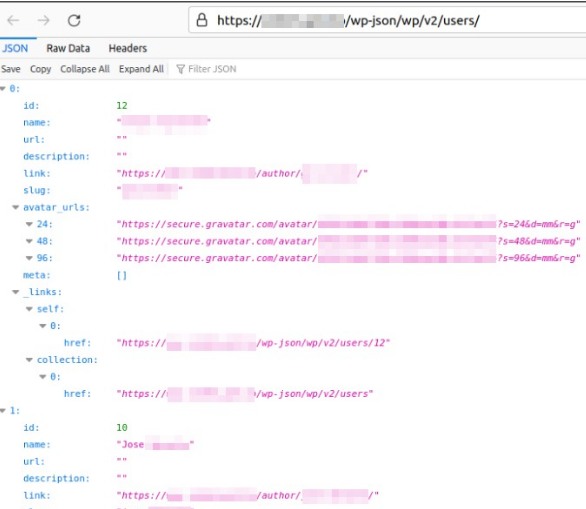
Para solucionar esta vulnerabilidad se debe actualizar a la versión 4.7.1 o posterior de Wordpress.  
  
Una opción, en caso de no hacer uso del API REST de Wordpress, es deshabilitarlo, para ello se debe agregar las siguientes líneas en el archivo de configuración de wordpress wp-config.php:

```bash
add_filter('rest_enabled', '_return_false');
add_filter('rest_jsonp_enabled', '_return_false');
```

### <span style="font-size: 11pt; font-family: Arial, sans-serif; color: rgb(52, 73, 94); font-weight: bold; font-style: normal; font-variant: normal; text-decoration: none; vertical-align: baseline; white-space: pre-wrap;">2.7. Utiliza contraseñas fuertes y seguras </span>

<span style="font-size: 11pt; font-family: Arial,sans-serif; color: #000000; background-color: transparent; font-weight: 400; font-style: normal; font-variant: normal; text-decoration: none; vertical-align: baseline; white-space: pre-wrap;">Utiliza contraseñas complejas y únicas para todas las cuentas de usuario, especialmente para los administradores.</span>

#### <span style="font-size: 11pt; font-family: Arial,sans-serif; color: #000000; background-color: transparent; font-weight: bold; font-style: normal; font-variant: normal; text-decoration: none; vertical-align: baseline; white-space: pre-wrap;">Creación de Contraseñas</span>

- <span style="font-size: 11pt; font-family: Arial,sans-serif; color: #000000; background-color: transparent; font-weight: bold; font-style: normal; font-variant: normal; text-decoration: none; vertical-align: baseline; white-space: pre-wrap;">Longitud</span><span style="font-size: 11pt; font-family: Arial,sans-serif; color: #000000; background-color: transparent; font-weight: 400; font-style: normal; font-variant: normal; text-decoration: none; vertical-align: baseline; white-space: pre-wrap;">: Usa contraseñas largas. Se recomienda al menos 12 caracteres, pero cuanto más larga, mejor.</span>
- <span style="font-size: 11pt; font-family: Arial,sans-serif; color: #000000; background-color: transparent; font-weight: bold; font-style: normal; font-variant: normal; text-decoration: none; vertical-align: baseline; white-space: pre-wrap;">Complejidad</span><span style="font-size: 11pt; font-family: Arial,sans-serif; color: #000000; background-color: transparent; font-weight: 400; font-style: normal; font-variant: normal; text-decoration: none; vertical-align: baseline; white-space: pre-wrap;">: Incluye una combinación de letras mayúsculas y minúsculas, números y caracteres especiales como !, @, #, $, %, etc.</span>
- <span style="font-size: 11pt; font-family: Arial,sans-serif; color: #000000; background-color: transparent; font-weight: bold; font-style: normal; font-variant: normal; text-decoration: none; vertical-align: baseline; white-space: pre-wrap;">Evita Información Personal</span><span style="font-size: 11pt; font-family: Arial,sans-serif; color: #000000; background-color: transparent; font-weight: 400; font-style: normal; font-variant: normal; text-decoration: none; vertical-align: baseline; white-space: pre-wrap;">: No uses información personal fácilmente disponible como nombres, fechas de nacimiento o números de teléfono.</span>
- <span style="font-size: 11pt; font-family: Arial,sans-serif; color: #000000; background-color: transparent; font-weight: bold; font-style: normal; font-variant: normal; text-decoration: none; vertical-align: baseline; white-space: pre-wrap;">Generación Segura</span><span style="font-size: 11pt; font-family: Arial,sans-serif; color: #000000; background-color: transparent; font-weight: 400; font-style: normal; font-variant: normal; text-decoration: none; vertical-align: baseline; white-space: pre-wrap;">: Utiliza generadores de contraseñas para crear combinaciones aleatorias y seguras. Hay herramientas en línea y aplicaciones de administración de contraseñas que pueden ayudarte con esto.</span>
- <span style="font-size: 11pt; font-family: Arial,sans-serif; color: #000000; background-color: transparent; font-weight: bold; font-style: normal; font-variant: normal; text-decoration: none; vertical-align: baseline; white-space: pre-wrap;">Almacenamiento Seguro</span><span style="font-size: 11pt; font-family: Arial,sans-serif; color: #000000; background-color: transparent; font-weight: 400; font-style: normal; font-variant: normal; text-decoration: none; vertical-align: baseline; white-space: pre-wrap;">: Usa administradores de contraseñas confiables para almacenar y gestionar contraseñas de forma segura.</span>

#### <span style="font-size: 11pt; font-family: Arial,sans-serif; color: #000000; background-color: transparent; font-weight: bold; font-style: normal; font-variant: normal; text-decoration: none; vertical-align: baseline; white-space: pre-wrap;">En ese sentido en WordPress se debe seguir los siguientes pasos</span>

- <span style="font-size: 11pt; font-family: Arial,sans-serif; color: #000000; background-color: transparent; font-weight: 400; font-style: normal; font-variant: normal; text-decoration: none; vertical-align: baseline; white-space: pre-wrap;">Inicia sesión en tu panel de administración de WordPress.</span>
- <span style="font-size: 11pt; font-family: Arial,sans-serif; color: #000000; background-color: transparent; font-weight: 400; font-style: normal; font-variant: normal; text-decoration: none; vertical-align: baseline; white-space: pre-wrap;">Dirígete a "Usuarios" y luego a "Todos los usuarios".</span>
- <span style="font-size: 11pt; font-family: Arial,sans-serif; color: #000000; background-color: transparent; font-weight: 400; font-style: normal; font-variant: normal; text-decoration: none; vertical-align: baseline; white-space: pre-wrap;">Haz clic en el nombre del usuario para el cual deseas cambiar la contraseña.</span>
- <span style="font-size: 11pt; font-family: Arial,sans-serif; color: #000000; background-color: transparent; font-weight: 400; font-style: normal; font-variant: normal; text-decoration: none; vertical-align: baseline; white-space: pre-wrap;">Desplázate hacia abajo hasta la sección "Nueva contraseña".</span>
- <span style="font-size: 11pt; font-family: Arial,sans-serif; color: #000000; background-color: transparent; font-weight: 400; font-style: normal; font-variant: normal; text-decoration: none; vertical-align: baseline; white-space: pre-wrap;">Ingresa una contraseña segura o utiliza el generador de contraseñas integrado haciendo clic en "Generar contraseña".</span>
- <span style="font-size: 11pt; font-family: Arial,sans-serif; color: #000000; background-color: transparent; font-weight: 400; font-style: normal; font-variant: normal; text-decoration: none; vertical-align: baseline; white-space: pre-wrap;">Confirma la contraseña y guarda los cambios.</span>

<span style="font-size: 11pt; font-family: Arial,sans-serif; color: #000000; background-color: transparent; font-weight: bold; font-style: normal; font-variant: normal; text-decoration: none; vertical-align: baseline; white-space: pre-wrap;"><span style="border: none; display: inline-block; overflow: hidden; width: 699px; height: 203px;">![](https://lh7-us.googleusercontent.com/docsz/AD_4nXd9UZgSk90fVWYLhIXI1a6IXnMrR40rFFVCUZWzS5ULAf50MMItljxnL0NY-HBIq3jFSD-9ZAcgI0fMv3gvPxhDuJ07zfaScEF8HNRt65eWWis-CAh079u9YbqZxLSSheUBXASgFblPTY8hGz-ALVWwJ4rJ?key=7UAv9acUgRCt7hDY3XDHFg)</span></span>

<span style="font-size: 11pt; font-family: Arial,sans-serif; color: #000000; background-color: transparent; font-weight: bold; font-style: normal; font-variant: normal; text-decoration: none; vertical-align: baseline; white-space: pre-wrap;"><span style="border: none; display: inline-block; overflow: hidden; width: 143px; height: 52px;">![](https://lh7-us.googleusercontent.com/docsz/AD_4nXfmSnvkWALPzRVwlxyU-ki9jCsX6xqm2ZnD376u8A92CzNu4WgM78Gp1Fsv9MHK_VwcKu5Xj03rAIJmlzqYKXqAd0mDDOK66Gq_IMg1xVamldOIdJeteL1nNGqW3DJBkBp9H7UeTO_oUUzrHRo2QJFlExUO?key=7UAv9acUgRCt7hDY3XDHFg)</span></span>

  
<span style="color: rgb(52, 73, 94);"><span style="font-size: 11pt; font-family: Arial, sans-serif; background-color: transparent; font-weight: bold; font-style: normal; font-variant: normal; text-decoration: none; vertical-align: baseline; white-space: pre-wrap;">2.8 Implementa Autenticación de Dos Factores (2FA)</span><span style="font-size: 11pt; font-family: Arial, sans-serif; background-color: transparent; font-weight: 400; font-style: normal; font-variant: normal; text-decoration: none; vertical-align: baseline; white-space: pre-wrap;">:</span><span style="font-size: 11pt; font-family: Arial, sans-serif; background-color: transparent; font-weight: 400; font-style: normal; font-variant: normal; text-decoration: none; vertical-align: baseline; white-space: pre-wrap;"> </span></span>

<span style="font-size: 11pt; font-family: Arial,sans-serif; color: #000000; background-color: transparent; font-weight: 400; font-style: normal; font-variant: normal; text-decoration: none; vertical-align: baseline; white-space: pre-wrap;">Usa un plugin de 2FA para añadir una capa adicional de seguridad a las cuentas de usuario.</span>

#### <span style="font-size: 11pt; font-family: Arial,sans-serif; color: #000000; background-color: transparent; font-weight: bold; font-style: normal; font-variant: normal; text-decoration: none; vertical-align: baseline; white-space: pre-wrap;">Autenticación de Dos Factores (2FA)</span>

- <span style="font-size: 11pt; font-family: Arial,sans-serif; color: #000000; background-color: transparent; font-weight: bold; font-style: normal; font-variant: normal; text-decoration: none; vertical-align: baseline; white-space: pre-wrap;">Segunda Capa de Seguridad</span><span style="font-size: 11pt; font-family: Arial,sans-serif; color: #000000; background-color: transparent; font-weight: 400; font-style: normal; font-variant: normal; text-decoration: none; vertical-align: baseline; white-space: pre-wrap;">: Considera habilitar la autenticación de dos factores para agregar una capa adicional de seguridad más allá de la contraseña.</span>

<span style="font-size: 11pt; font-family: Arial,sans-serif; color: #000000; background-color: transparent; font-weight: bold; font-style: normal; font-variant: normal; text-decoration: none; vertical-align: baseline; white-space: pre-wrap;">Pasos para Configurar 2FA en WordPress con Google Authenticator:</span>

<span style="font-size: 11pt; font-family: Arial,sans-serif; color: #000000; background-color: transparent; font-weight: bold; font-style: normal; font-variant: normal; text-decoration: none; vertical-align: baseline; white-space: pre-wrap;">2.8.1. Instala un Plugin de 2FA</span><span style="font-size: 11pt; font-family: Arial,sans-serif; color: #000000; background-color: transparent; font-weight: 400; font-style: normal; font-variant: normal; text-decoration: none; vertical-align: baseline; white-space: pre-wrap;">:</span>

- <span style="font-size: 11pt; font-family: Arial,sans-serif; color: #000000; background-color: transparent; font-weight: 400; font-style: normal; font-variant: normal; text-decoration: none; vertical-align: baseline; white-space: pre-wrap;">Dirígete a tu panel de administración de WordPress.</span>
- <span style="font-size: 11pt; font-family: Arial,sans-serif; color: #000000; background-color: transparent; font-weight: 400; font-style: normal; font-variant: normal; text-decoration: none; vertical-align: baseline; white-space: pre-wrap;">Ve a </span><span style="font-size: 11pt; font-family: Arial,sans-serif; color: #000000; background-color: transparent; font-weight: bold; font-style: normal; font-variant: normal; text-decoration: none; vertical-align: baseline; white-space: pre-wrap;">Plugins &gt; Añadir nuevo</span><span style="font-size: 11pt; font-family: Arial,sans-serif; color: #000000; background-color: transparent; font-weight: 400; font-style: normal; font-variant: normal; text-decoration: none; vertical-align: baseline; white-space: pre-wrap;">.</span>
- <span style="font-size: 11pt; font-family: Arial,sans-serif; color: #000000; background-color: transparent; font-weight: 400; font-style: normal; font-variant: normal; text-decoration: none; vertical-align: baseline; white-space: pre-wrap;">Busca "Two Factor Authentication" o "Google Authenticator" y haz clic en </span><span style="font-size: 11pt; font-family: Arial,sans-serif; color: #000000; background-color: transparent; font-weight: bold; font-style: normal; font-variant: normal; text-decoration: none; vertical-align: baseline; white-space: pre-wrap;">Instalar ahora</span><span style="font-size: 11pt; font-family: Arial,sans-serif; color: #000000; background-color: transparent; font-weight: 400; font-style: normal; font-variant: normal; text-decoration: none; vertical-align: baseline; white-space: pre-wrap;">.</span>

<span style="font-size: 11pt; font-family: Arial,sans-serif; color: #000000; background-color: transparent; font-weight: 400; font-style: normal; font-variant: normal; text-decoration: none; vertical-align: baseline; white-space: pre-wrap;"><span style="border: none; display: inline-block; overflow: hidden; width: 343px; height: 308px;">![](https://lh7-us.googleusercontent.com/docsz/AD_4nXeuzSMy1Fw554omTtVuhg08gUhVhT3NAKTuLhwcBm--GNd3tGTKJLP5o7URY0Bia5QCsGq80c6TgfMGidJKQU2kfQS0-U6Mkvs4azvjSVNGxqttiI9MEI2RYj82vx-GcbM7SQrSWoNGqMmTI3LeAaV9x6s?key=7UAv9acUgRCt7hDY3XDHFg)</span></span>

<span style="font-size: 11pt; font-family: Arial,sans-serif; color: #000000; background-color: transparent; font-weight: bold; font-style: normal; font-variant: normal; text-decoration: none; vertical-align: baseline; white-space: pre-wrap;"> a. Activa el Plugin</span><span style="font-size: 11pt; font-family: Arial,sans-serif; color: #000000; background-color: transparent; font-weight: 400; font-style: normal; font-variant: normal; text-decoration: none; vertical-align: baseline; white-space: pre-wrap;">:</span>

- <span style="font-size: 11pt; font-family: Arial,sans-serif; color: #000000; background-color: transparent; font-weight: 400; font-style: normal; font-variant: normal; text-decoration: none; vertical-align: baseline; white-space: pre-wrap;">Después de la instalación, haz clic en </span><span style="font-size: 11pt; font-family: Arial,sans-serif; color: #000000; background-color: transparent; font-weight: bold; font-style: normal; font-variant: normal; text-decoration: none; vertical-align: baseline; white-space: pre-wrap;">Activar</span><span style="font-size: 11pt; font-family: Arial,sans-serif; color: #000000; background-color: transparent; font-weight: 400; font-style: normal; font-variant: normal; text-decoration: none; vertical-align: baseline; white-space: pre-wrap;"> para activar el plugin. </span>

**<span style="font-size: 11pt; font-family: Arial, sans-serif; color: rgb(0, 0, 0); background-color: transparent; font-style: normal; font-variant: normal; text-decoration: none; vertical-align: baseline; white-space: pre-wrap;"> b. </span><span style="font-size: 11pt; font-family: Arial, sans-serif; color: rgb(0, 0, 0); background-color: transparent; font-style: normal; font-variant: normal; text-decoration: none; vertical-align: baseline; white-space: pre-wrap;">Configura el Plugin</span><span style="font-size: 11pt; font-family: Arial, sans-serif; color: rgb(0, 0, 0); background-color: transparent; font-style: normal; font-variant: normal; text-decoration: none; vertical-align: baseline; white-space: pre-wrap;">:</span>**

- <span style="font-size: 11pt; font-family: Arial,sans-serif; color: #000000; background-color: transparent; font-weight: 400; font-style: normal; font-variant: normal; text-decoration: none; vertical-align: baseline; white-space: pre-wrap;">Una vez activado, ve a </span><span style="font-size: 11pt; font-family: Arial,sans-serif; color: #000000; background-color: transparent; font-weight: bold; font-style: normal; font-variant: normal; text-decoration: none; vertical-align: baseline; white-space: pre-wrap;">Usuarios &gt; Perfil</span><span style="font-size: 11pt; font-family: Arial,sans-serif; color: #000000; background-color: transparent; font-weight: 400; font-style: normal; font-variant: normal; text-decoration: none; vertical-align: baseline; white-space: pre-wrap;">.</span>
- <span style="font-size: 11pt; font-family: Arial,sans-serif; color: #000000; background-color: transparent; font-weight: 400; font-style: normal; font-variant: normal; text-decoration: none; vertical-align: baseline; white-space: pre-wrap;">Desplázate hacia abajo hasta la sección de "Autenticación de dos factores".</span>
- <span style="font-size: 11pt; font-family: Arial,sans-serif; color: #000000; background-color: transparent; font-weight: 400; font-style: normal; font-variant: normal; text-decoration: none; vertical-align: baseline; white-space: pre-wrap;">Selecciona "Habilitar la autenticación de dos factores para este usuario". </span>

**<span style="font-size: 11pt; font-family: Arial, sans-serif; color: rgb(0, 0, 0); background-color: transparent; font-style: normal; font-variant: normal; text-decoration: none; vertical-align: baseline; white-space: pre-wrap;"> c. </span><span style="font-size: 11pt; font-family: Arial, sans-serif; color: rgb(0, 0, 0); background-color: transparent; font-style: normal; font-variant: normal; text-decoration: none; vertical-align: baseline; white-space: pre-wrap;">Configuración con Google Authenticator</span><span style="font-size: 11pt; font-family: Arial, sans-serif; color: rgb(0, 0, 0); background-color: transparent; font-style: normal; font-variant: normal; text-decoration: none; vertical-align: baseline; white-space: pre-wrap;">:</span>**

- <span style="font-size: 11pt; font-family: Arial,sans-serif; color: #000000; background-color: transparent; font-weight: 400; font-style: normal; font-variant: normal; text-decoration: none; vertical-align: baseline; white-space: pre-wrap;">Descarga e instala la aplicación "Google Authenticator" en tu dispositivo móvil desde la tienda de aplicaciones correspondiente (iOS o Android).</span>

**<span style="font-size: 11pt; font-family: Arial, sans-serif; color: rgb(0, 0, 0); background-color: transparent; font-style: normal; font-variant: normal; text-decoration: none; vertical-align: baseline; white-space: pre-wrap;"> d. </span><span style="font-size: 11pt; font-family: Arial, sans-serif; color: rgb(0, 0, 0); background-color: transparent; font-style: normal; font-variant: normal; text-decoration: none; vertical-align: baseline; white-space: pre-wrap;">Escanea el Código QR</span><span style="font-size: 11pt; font-family: Arial, sans-serif; color: rgb(0, 0, 0); background-color: transparent; font-style: normal; font-variant: normal; text-decoration: none; vertical-align: baseline; white-space: pre-wrap;">:</span>**

- <span style="font-size: 11pt; font-family: Arial,sans-serif; color: #000000; background-color: transparent; font-weight: 400; font-style: normal; font-variant: normal; text-decoration: none; vertical-align: baseline; white-space: pre-wrap;">En la configuración de 2FA de tu perfil de WordPress, selecciona "Google Authenticator".</span>
- <span style="font-size: 11pt; font-family: Arial,sans-serif; color: #000000; background-color: transparent; font-weight: 400; font-style: normal; font-variant: normal; text-decoration: none; vertical-align: baseline; white-space: pre-wrap;">Abre la aplicación Google Authenticator en tu teléfono y escanea el código QR que aparece en pantalla.</span>
- <span style="font-size: 11pt; font-family: Arial,sans-serif; color: #000000; background-color: transparent; font-weight: 400; font-style: normal; font-variant: normal; text-decoration: none; vertical-align: baseline; white-space: pre-wrap;">Alternativamente, puedes introducir el código secreto manualmente si no puedes escanear el código QR. </span>

**<span style="font-size: 11pt; font-family: Arial, sans-serif; color: rgb(0, 0, 0); background-color: transparent; font-style: normal; font-variant: normal; text-decoration: none; vertical-align: baseline; white-space: pre-wrap;"> e. </span><span style="font-size: 11pt; font-family: Arial, sans-serif; color: rgb(0, 0, 0); background-color: transparent; font-style: normal; font-variant: normal; text-decoration: none; vertical-align: baseline; white-space: pre-wrap;">Verificación</span><span style="font-size: 11pt; font-family: Arial, sans-serif; color: rgb(0, 0, 0); background-color: transparent; font-style: normal; font-variant: normal; text-decoration: none; vertical-align: baseline; white-space: pre-wrap;">:</span>**

- <span style="font-size: 11pt; font-family: Arial,sans-serif; color: #000000; background-color: transparent; font-weight: 400; font-style: normal; font-variant: normal; text-decoration: none; vertical-align: baseline; white-space: pre-wrap;">Una vez escaneado o introducido el código, la aplicación generará códigos de verificación de seis dígitos que cambian cada 30 segundos.</span>
- <span style="font-size: 11pt; font-family: Arial,sans-serif; color: #000000; background-color: transparent; font-weight: 400; font-style: normal; font-variant: normal; text-decoration: none; vertical-align: baseline; white-space: pre-wrap;">Introduce el código de verificación generado por Google Authenticator en el campo correspondiente en tu perfil de WordPress. </span>

**<span style="font-size: 11pt; font-family: Arial, sans-serif; color: rgb(0, 0, 0); background-color: transparent; font-style: normal; font-variant: normal; text-decoration: none; vertical-align: baseline; white-space: pre-wrap;"> f. </span><span style="font-size: 11pt; font-family: Arial, sans-serif; color: rgb(0, 0, 0); background-color: transparent; font-style: normal; font-variant: normal; text-decoration: none; vertical-align: baseline; white-space: pre-wrap;">Guarda los Cambios</span><span style="font-size: 11pt; font-family: Arial, sans-serif; color: rgb(0, 0, 0); background-color: transparent; font-style: normal; font-variant: normal; text-decoration: none; vertical-align: baseline; white-space: pre-wrap;">:</span>**

- <span style="font-size: 11pt; font-family: Arial,sans-serif; color: #000000; background-color: transparent; font-weight: 400; font-style: normal; font-variant: normal; text-decoration: none; vertical-align: baseline; white-space: pre-wrap;">Haz clic en </span><span style="font-size: 11pt; font-family: Arial,sans-serif; color: #000000; background-color: transparent; font-weight: bold; font-style: normal; font-variant: normal; text-decoration: none; vertical-align: baseline; white-space: pre-wrap;">Actualizar perfil</span><span style="font-size: 11pt; font-family: Arial,sans-serif; color: #000000; background-color: transparent; font-weight: 400; font-style: normal; font-variant: normal; text-decoration: none; vertical-align: baseline; white-space: pre-wrap;"> para guardar la configuración. </span>

**<span style="font-size: 11pt; font-family: Arial, sans-serif; color: rgb(0, 0, 0); background-color: transparent; font-style: normal; font-variant: normal; text-decoration: none; vertical-align: baseline; white-space: pre-wrap;"> g. </span><span style="font-size: 11pt; font-family: Arial, sans-serif; color: rgb(0, 0, 0); background-color: transparent; font-style: normal; font-variant: normal; text-decoration: none; vertical-align: baseline; white-space: pre-wrap;">Probar la Autenticación de Dos Factores</span><span style="font-size: 11pt; font-family: Arial, sans-serif; color: rgb(0, 0, 0); background-color: transparent; font-style: normal; font-variant: normal; text-decoration: none; vertical-align: baseline; white-space: pre-wrap;">:</span>**

- <span style="font-size: 11pt; font-family: Arial,sans-serif; color: #000000; background-color: transparent; font-weight: 400; font-style: normal; font-variant: normal; text-decoration: none; vertical-align: baseline; white-space: pre-wrap;">Cierra sesión en WordPress y vuelve a iniciar sesión.</span>
- <span style="font-size: 11pt; font-family: Arial,sans-serif; color: #000000; background-color: transparent; font-weight: 400; font-style: normal; font-variant: normal; text-decoration: none; vertical-align: baseline; white-space: pre-wrap;">Introduce tu nombre de usuario y contraseña como de costumbre.</span>
- <span style="font-size: 11pt; font-family: Arial,sans-serif; color: #000000; background-color: transparent; font-weight: 400; font-style: normal; font-variant: normal; text-decoration: none; vertical-align: baseline; white-space: pre-wrap;">Cuando se te solicite, abre la aplicación Google Authenticator en tu teléfono e introduce el código de verificación actual.</span>

**<span style="font-size: 11pt; font-family: Arial, sans-serif; color: rgb(0, 0, 0); background-color: transparent; font-style: normal; font-variant: normal; text-decoration: none; vertical-align: baseline; white-space: pre-wrap;"> h. Configuración Adicional</span><span style="font-size: 11pt; font-family: Arial, sans-serif; color: rgb(0, 0, 0); background-color: transparent; font-style: normal; font-variant: normal; text-decoration: none; vertical-align: baseline; white-space: pre-wrap;">:</span>**

- <span style="font-size: 11pt; font-family: Arial,sans-serif; color: #000000; background-color: transparent; font-weight: 400; font-style: normal; font-variant: normal; text-decoration: none; vertical-align: baseline; white-space: pre-wrap;">Algunos plugins de 2FA permiten opciones adicionales, como la entrega de códigos por correo electrónico o SMS como método secundario de autenticación.</span>

<span style="font-size: 11pt; font-family: Arial,sans-serif; color: #000000; background-color: transparent; font-weight: 400; font-style: normal; font-variant: normal; text-decoration: none; vertical-align: baseline; white-space: pre-wrap;">Para aplicar a todos los usuarios de tu sitio wordpress se debe activar la opción todos los usuarios como se ve en la siguiente imagen.</span>

<span style="font-size: 11pt; font-family: Arial,sans-serif; color: #000000; background-color: transparent; font-weight: 400; font-style: normal; font-variant: normal; text-decoration: none; vertical-align: baseline; white-space: pre-wrap;"><span style="border: none; display: inline-block; overflow: hidden; width: 830px; height: 178px;">![](https://lh7-us.googleusercontent.com/docsz/AD_4nXf-wWzvxRzFW81TDxQ8kZh_6AtCQ9VI4krkCbZSdJ4vnMslK_LuXDMh0Fu8Lb-p0G6wfOq_2VbgspAfA_EuHUNMtcaJ_bLcP7KhNvBHUriPIcRe6vubBOFTXcEhgaQBfIYh8OFdvVBqAweoFRklYkfQqRQ?key=7UAv9acUgRCt7hDY3XDHFg)</span></span>

### <span style="font-size: 11pt; font-family: Arial, sans-serif; color: rgb(52, 73, 94); font-weight: bold; font-style: normal; font-variant: normal; text-decoration: none; vertical-align: baseline; white-space: pre-wrap;">2.9. Limita los Intentos de Inicio de Sesión</span>

<span style="font-size: 11pt; font-family: Arial,sans-serif; color: #000000; background-color: transparent; font-weight: 400; font-style: normal; font-variant: normal; text-decoration: none; vertical-align: baseline; white-space: pre-wrap;">Usa un plugin como "Limit Login Attempts Reloaded" para bloquear direcciones IP después de varios intentos fallidos de inicio de sesión.</span>

#### <span style="font-size: 12pt; font-family: Arial,sans-serif; color: #000000; background-color: transparent; font-weight: bold; font-style: normal; font-variant: normal; text-decoration: none; vertical-align: baseline; white-space: pre-wrap;">Instalación de un Plugin de Seguridad:</span>

- <span style="font-size: 12pt; font-family: Arial,sans-serif; color: #000000; background-color: transparent; font-weight: 400; font-style: normal; font-variant: normal; text-decoration: none; vertical-align: baseline; white-space: pre-wrap;">Busca y selecciona un plugin de seguridad confiable en WordPress, como "</span><span style="font-size: 12pt; font-family: Arial,sans-serif; color: #ff9900; background-color: transparent; font-weight: 400; font-style: normal; font-variant: normal; text-decoration: none; vertical-align: baseline; white-space: pre-wrap;">Limit Login Attempts Reloaded</span><span style="font-size: 12pt; font-family: Arial,sans-serif; color: #000000; background-color: transparent; font-weight: 400; font-style: normal; font-variant: normal; text-decoration: none; vertical-align: baseline; white-space: pre-wrap;">" </span>
- <span style="font-size: 12pt; font-family: Arial,sans-serif; color: #000000; background-color: transparent; font-weight: 400; font-style: normal; font-variant: normal; text-decoration: none; vertical-align: baseline; white-space: pre-wrap;">Instalarlo y activarlo desde el panel de administración de WordPress.</span>

#### <span style="font-size: 12pt; font-family: Arial,sans-serif; color: #000000; background-color: transparent; font-weight: bold; font-style: normal; font-variant: normal; text-decoration: none; vertical-align: baseline; white-space: pre-wrap;">Configuración del Plugin:</span>

- <span style="font-size: 12pt; font-family: Arial,sans-serif; color: #000000; background-color: transparent; font-weight: 400; font-style: normal; font-variant: normal; text-decoration: none; vertical-align: baseline; white-space: pre-wrap;">Después de activar el plugin, ve a su configuración en el menú lateral de WordPress (generalmente bajo "Configuración" o "Seguridad").</span>
- <span style="font-size: 12pt; font-family: Arial,sans-serif; color: #000000; background-color: transparent; font-weight: 400; font-style: normal; font-variant: normal; text-decoration: none; vertical-align: baseline; white-space: pre-wrap;">Encuentra la sección relacionada con la restricción de intentos de inicio de sesión.</span>

#### <span style="font-size: 12pt; font-family: Arial,sans-serif; color: #000000; background-color: transparent; font-weight: bold; font-style: normal; font-variant: normal; text-decoration: none; vertical-align: baseline; white-space: pre-wrap;">Establecimiento de Límites y Acciones:</span>

- <span style="font-size: 12pt; font-family: Arial,sans-serif; color: #000000; background-color: transparent; font-weight: 400; font-style: normal; font-variant: normal; text-decoration: none; vertical-align: baseline; white-space: pre-wrap;">Define el número máximo de intentos de inicio de sesión permitidos antes de que se active la restricción (por ejemplo, 3-5 intentos).</span>
- <span style="font-size: 12pt; font-family: Arial,sans-serif; color: #000000; background-color: transparent; font-weight: 400; font-style: normal; font-variant: normal; text-decoration: none; vertical-align: baseline; white-space: pre-wrap;">Configura el tiempo de bloqueo de la dirección IP después de alcanzar el límite de intentos fallidos (por ejemplo, 15 minutos, 1 hora, etc.).</span>

#### <span style="font-size: 12pt; font-family: Arial,sans-serif; color: #000000; background-color: transparent; font-weight: bold; font-style: normal; font-variant: normal; text-decoration: none; vertical-align: baseline; white-space: pre-wrap;">Personalización de Mensajes y Notificaciones:</span>

- <span style="font-size: 12pt; font-family: Arial,sans-serif; color: #000000; background-color: transparent; font-weight: 400; font-style: normal; font-variant: normal; text-decoration: none; vertical-align: baseline; white-space: pre-wrap;">Algunos plugins te permiten personalizar los mensajes mostrados a los usuarios cuando exceden el límite de intentos de inicio de sesión.</span>
- <span style="font-size: 12pt; font-family: Arial,sans-serif; color: #000000; background-color: transparent; font-weight: 400; font-style: normal; font-variant: normal; text-decoration: none; vertical-align: baseline; white-space: pre-wrap;">Configura notificaciones por correo electrónico o alertas dentro del panel de administración para informarte sobre intentos de inicio de sesión fallidos.</span>

#### <span style="font-size: 12pt; font-family: Arial,sans-serif; color: #000000; background-color: transparent; font-weight: bold; font-style: normal; font-variant: normal; text-decoration: none; vertical-align: baseline; white-space: pre-wrap;">Prueba y Verificación:</span>

- <span style="font-size: 12pt; font-family: Arial,sans-serif; color: #000000; background-color: transparent; font-weight: 400; font-style: normal; font-variant: normal; text-decoration: none; vertical-align: baseline; white-space: pre-wrap;">Realiza pruebas para asegurarte de que la restricción de intentos de inicio de sesión esté funcionando según lo esperado.</span>
- <span style="font-size: 12pt; font-family: Arial,sans-serif; color: #000000; background-color: transparent; font-weight: 400; font-style: normal; font-variant: normal; text-decoration: none; vertical-align: baseline; white-space: pre-wrap;">Intenta iniciar sesión varias veces con credenciales incorrectas para verificar que se active la restricción después de alcanzar el límite establecido.</span>

#### <span style="font-size: 12pt; font-family: Arial,sans-serif; color: #000000; background-color: transparent; font-weight: bold; font-style: normal; font-variant: normal; text-decoration: none; vertical-align: baseline; white-space: pre-wrap;">Monitoreo Continuo y Ajustes:</span>

- <span style="font-size: 12pt; font-family: Arial,sans-serif; color: #000000; background-color: transparent; font-weight: 400; font-style: normal; font-variant: normal; text-decoration: none; vertical-align: baseline; white-space: pre-wrap;">Monitorea regularmente los registros de inicio de sesión y las alertas de tu plugin de seguridad para detectar actividades sospechosas.</span>
- <span style="font-size: 12pt; font-family: Arial,sans-serif; color: #000000; background-color: transparent; font-weight: 400; font-style: normal; font-variant: normal; text-decoration: none; vertical-align: baseline; white-space: pre-wrap;">Ajusta la configuración según sea necesario para mantener un equilibrio entre seguridad y accesibilidad.</span>

<span style="color: rgb(52, 73, 94);"><span style="font-size: 11pt; font-family: Arial, sans-serif; background-color: transparent; font-weight: bold; font-style: normal; font-variant: normal; text-decoration: none; vertical-align: baseline; white-space: pre-wrap;">2.10. Cambia el Prefijo de la Base de Datos</span></span>

<span style="font-size: 11pt; font-family: Arial,sans-serif; color: #000000; background-color: transparent; font-weight: 400; font-style: normal; font-variant: normal; text-decoration: none; vertical-align: baseline; white-space: pre-wrap;">Durante la instalación, cambia el prefijo predeterminado </span><span style="font-size: 11pt; font-family: 'Roboto Mono',monospace; color: #188038; background-color: transparent; font-weight: 400; font-style: normal; font-variant: normal; text-decoration: none; vertical-align: baseline; white-space: pre-wrap;">wp\_</span><span style="font-size: 11pt; font-family: Arial,sans-serif; color: #000000; background-color: transparent; font-weight: 400; font-style: normal; font-variant: normal; text-decoration: none; vertical-align: baseline; white-space: pre-wrap;"> de la base de datos a algo único para prevenir ataques SQL.</span>

<span style="font-size: 11pt; font-family: Arial,sans-serif; color: #000000; background-color: transparent; font-weight: 400; font-style: normal; font-variant: normal; text-decoration: none; vertical-align: baseline; white-space: pre-wrap;">Cambiar el prefijo de la base de datos en WordPress es una medida de seguridad que puede ayudar a proteger tu sitio contra ataques SQL Injection. Aquí tienes una guía paso a paso para hacerlo:</span>

<span style="font-size: 11pt; font-family: Arial,sans-serif; color: #000000; background-color: transparent; font-weight: bold; font-style: normal; font-variant: normal; text-decoration: none; vertical-align: baseline; white-space: pre-wrap;">Realizar una Copia de Seguridad Completa:</span>

- <span style="font-size: 11pt; font-family: Arial,sans-serif; color: #000000; background-color: transparent; font-weight: 400; font-style: normal; font-variant: normal; text-decoration: none; vertical-align: baseline; white-space: pre-wrap;">Antes de realizar cualquier cambio en la base de datos, es crucial hacer una copia de seguridad completa de tu sitio web y de la base de datos.</span>
- <span style="font-size: 11pt; font-family: Arial,sans-serif; color: #000000; background-color: transparent; font-weight: 400; font-style: normal; font-variant: normal; text-decoration: none; vertical-align: baseline; white-space: pre-wrap;">Puedes usar plugins como UpdraftPlus, BackupBuddy, o el propio sistema de backups de tu proveedor de hosting.</span>

<span style="font-size: 11pt; font-family: Arial,sans-serif; color: #000000; background-color: transparent; font-weight: bold; font-style: normal; font-variant: normal; text-decoration: none; vertical-align: baseline; white-space: pre-wrap;">Desactivar Plugins de Caché y Seguridad:</span>

- <span style="font-size: 11pt; font-family: Arial,sans-serif; color: #000000; background-color: transparent; font-weight: 400; font-style: normal; font-variant: normal; text-decoration: none; vertical-align: baseline; white-space: pre-wrap;">Desactiva temporalmente cualquier plugin de caché o seguridad para evitar conflictos durante el proceso.</span>

<span style="font-size: 11pt; font-family: Arial,sans-serif; color: #000000; background-color: transparent; font-weight: bold; font-style: normal; font-variant: normal; text-decoration: none; vertical-align: baseline; white-space: pre-wrap;">Editar el Archivo </span><span style="font-size: 11pt; font-family: 'Roboto Mono',monospace; color: #188038; background-color: transparent; font-weight: bold; font-style: normal; font-variant: normal; text-decoration: none; vertical-align: baseline; white-space: pre-wrap;">wp-config.php</span><span style="font-size: 11pt; font-family: Arial,sans-serif; color: #000000; background-color: transparent; font-weight: bold; font-style: normal; font-variant: normal; text-decoration: none; vertical-align: baseline; white-space: pre-wrap;">:</span>

- <span style="font-size: 11pt; font-family: Arial,sans-serif; color: #000000; background-color: transparent; font-weight: 400; font-style: normal; font-variant: normal; text-decoration: none; vertical-align: baseline; white-space: pre-wrap;">Accede al archivo </span><span style="font-size: 11pt; font-family: 'Roboto Mono',monospace; color: #188038; background-color: transparent; font-weight: 400; font-style: normal; font-variant: normal; text-decoration: none; vertical-align: baseline; white-space: pre-wrap;">wp-config.php</span><span style="font-size: 11pt; font-family: Arial,sans-serif; color: #000000; background-color: transparent; font-weight: 400; font-style: normal; font-variant: normal; text-decoration: none; vertical-align: baseline; white-space: pre-wrap;"> en el directorio raíz de tu instalación de WordPress.</span>

<span style="font-size: 11pt; font-family: Arial,sans-serif; color: #000000; background-color: transparent; font-weight: 400; font-style: normal; font-variant: normal; text-decoration: none; vertical-align: baseline; white-space: pre-wrap;">Encuentra la línea que define el prefijo de la base de datos, que generalmente se ve así:</span><span style="font-size: 11pt; font-family: Arial,sans-serif; color: #000000; background-color: transparent; font-weight: 400; font-style: normal; font-variant: normal; text-decoration: none; vertical-align: baseline; white-space: pre-wrap;">  
</span><span style="font-size: 11pt; font-family: Arial,sans-serif; color: #000000; background-color: transparent; font-weight: 400; font-style: normal; font-variant: normal; text-decoration: none; vertical-align: baseline; white-space: pre-wrap;">  
</span><span style="font-size: 11pt; font-family: Arial,sans-serif; color: #000000; background-color: transparent; font-weight: 400; font-style: normal; font-variant: normal; text-decoration: none; vertical-align: baseline; white-space: pre-wrap;">Copiar código </span><span style="font-size: 11pt; font-family: Arial,sans-serif; color: #000000; background-color: transparent; font-weight: 400; font-style: normal; font-variant: normal; text-decoration: none; vertical-align: baseline; white-space: pre-wrap;">  
</span>

```php
$table_prefix = 'wp_';
```

<span style="font-size: 11pt; font-family: Arial,sans-serif; color: #000000; background-color: transparent; font-weight: 400; font-style: normal; font-variant: normal; text-decoration: none; vertical-align: baseline; white-space: pre-wrap;">Cambia el prefijo </span><span style="font-size: 11pt; font-family: 'Roboto Mono',monospace; color: #188038; background-color: transparent; font-weight: 400; font-style: normal; font-variant: normal; text-decoration: none; vertical-align: baseline; white-space: pre-wrap;">wp\_</span><span style="font-size: 11pt; font-family: Arial,sans-serif; color: #000000; background-color: transparent; font-weight: 400; font-style: normal; font-variant: normal; text-decoration: none; vertical-align: baseline; white-space: pre-wrap;"> a algo único, por ejemplo</span><span style="font-size: 11pt; font-family: Arial,sans-serif; color: #000000; background-color: transparent; font-weight: 400; font-style: normal; font-variant: normal; text-decoration: none; vertical-align: baseline; white-space: pre-wrap;">  
</span><span style="font-size: 11pt; font-family: Arial,sans-serif; color: #000000; background-color: transparent; font-weight: 400; font-style: normal; font-variant: normal; text-decoration: none; vertical-align: baseline; white-space: pre-wrap;">Copiar código</span><span style="font-size: 11pt; font-family: Arial,sans-serif; color: #000000; background-color: transparent; font-weight: 400; font-style: normal; font-variant: normal; text-decoration: none; vertical-align: baseline; white-space: pre-wrap;">  
</span>

```php
$table_prefix = 'nuevo_prefijo_';
```

<span style="font-size: 11pt; font-family: Arial,sans-serif; color: #000000; background-color: transparent; font-weight: bold; font-style: normal; font-variant: normal; text-decoration: none; vertical-align: baseline; white-space: pre-wrap;">Actualizar el Prefijo en la Base de Datos:</span>

- <span style="font-size: 11pt; font-family: Arial,sans-serif; color: #000000; background-color: transparent; font-weight: 400; font-style: normal; font-variant: normal; text-decoration: none; vertical-align: baseline; white-space: pre-wrap;">Usa una herramienta como phpMyAdmin o cualquier otro administrador de bases de datos para acceder a tu base de datos de WordPress.</span>

<span style="font-size: 11pt; font-family: Arial,sans-serif; color: #000000; background-color: transparent; font-weight: 400; font-style: normal; font-variant: normal; text-decoration: none; vertical-align: baseline; white-space: pre-wrap;">Ejecuta las siguientes consultas SQL para cambiar el prefijo de todas las tablas</span><span style="font-size: 11pt; font-family: Arial,sans-serif; color: #000000; background-color: transparent; font-weight: 400; font-style: normal; font-variant: normal; text-decoration: none; vertical-align: baseline; white-space: pre-wrap;">  
</span><span style="font-size: 11pt; font-family: Arial,sans-serif; color: #000000; background-color: transparent; font-weight: 400; font-style: normal; font-variant: normal; text-decoration: none; vertical-align: baseline; white-space: pre-wrap;">Copiar código</span><span style="font-size: 11pt; font-family: Arial,sans-serif; color: #000000; background-color: transparent; font-weight: 400; font-style: normal; font-variant: normal; text-decoration: none; vertical-align: baseline; white-space: pre-wrap;">  
</span>

```pl/sql
RENAME table `wp_commentmeta` TO `nuevo_prefijo_commentmeta`;

RENAME table `wp_comments` TO `nuevo_prefijo_comments`;

RENAME table `wp_links` TO `nuevo_prefijo_links`;

RENAME table `wp_options` TO `nuevo_prefijo_options`;

RENAME table `wp_postmeta` TO `nuevo_prefijo_postmeta`;

RENAME table `wp_posts` TO `nuevo_prefijo_posts`;

RENAME table `wp_terms` TO `nuevo_prefijo_terms`;

RENAME table `wp_termmeta` TO `nuevo_prefijo_termmeta`;

RENAME table `wp_term_relationships` TO `nuevo_prefijo_term_relationships`;

RENAME table `wp_term_taxonomy` TO `nuevo_prefijo_term_taxonomy`;

RENAME table `wp_usermeta` TO `nuevo_prefijo_usermeta`;

RENAME table `wp_users` TO `nuevo_prefijo_users`;
```

<span style="font-size: 11pt; font-family: Arial,sans-serif; color: #000000; background-color: transparent; font-weight: bold; font-style: normal; font-variant: normal; text-decoration: none; vertical-align: baseline; white-space: pre-wrap;">Actualizar las Referencias en la Base de Datos:</span>

- <span style="font-size: 11pt; font-family: Arial,sans-serif; color: #000000; background-color: transparent; font-weight: 400; font-style: normal; font-variant: normal; text-decoration: none; vertical-align: baseline; white-space: pre-wrap;">Algunas tablas contienen referencias al prefijo antiguo. Debes actualizar estas referencias también. Ejecuta las siguientes consultas SQL</span><span style="font-size: 11pt; font-family: Arial,sans-serif; color: #000000; background-color: transparent; font-weight: 400; font-style: normal; font-variant: normal; text-decoration: none; vertical-align: baseline; white-space: pre-wrap;">  
    </span><span style="font-size: 11pt; font-family: Arial,sans-serif; color: #000000; background-color: transparent; font-weight: 400; font-style: normal; font-variant: normal; text-decoration: none; vertical-align: baseline; white-space: pre-wrap;">  
    </span><span style="font-size: 11pt; font-family: Arial,sans-serif; color: #000000; background-color: transparent; font-weight: 400; font-style: normal; font-variant: normal; text-decoration: none; vertical-align: baseline; white-space: pre-wrap;">Copiar código</span><span style="font-size: 11pt; font-family: Arial,sans-serif; color: #000000; background-color: transparent; font-weight: 400; font-style: normal; font-variant: normal; text-decoration: none; vertical-align: baseline; white-space: pre-wrap;">  
    </span>```pl/sql
    UPDATE `nuevo_prefijo_options` SET `option_name` = REPLACE(`option_name`, 'wp_', 'nuevo_prefijo_') WHERE `option_name` LIKE 'wp_%';
    
    UPDATE `nuevo_prefijo_usermeta` SET `meta_key` = REPLACE(`meta_key`, 'wp_', 'nuevo_prefijo_') WHERE `meta_key` LIKE 'wp_%';
    ```

<span style="font-size: 11pt; font-family: Arial,sans-serif; color: #000000; background-color: transparent; font-weight: bold; font-style: normal; font-variant: normal; text-decoration: none; vertical-align: baseline; white-space: pre-wrap;">Verificar y Probar:</span>

- <span style="font-size: 11pt; font-family: Arial,sans-serif; color: #000000; background-color: transparent; font-weight: 400; font-style: normal; font-variant: normal; text-decoration: none; vertical-align: baseline; white-space: pre-wrap;">Vuelve a activar los plugins de caché y seguridad.</span>
- <span style="font-size: 11pt; font-family: Arial,sans-serif; color: #000000; background-color: transparent; font-weight: 400; font-style: normal; font-variant: normal; text-decoration: none; vertical-align: baseline; white-space: pre-wrap;">Revisa que todo esté funcionando correctamente en tu sitio web.</span>
- <span style="font-size: 11pt; font-family: Arial,sans-serif; color: #000000; background-color: transparent; font-weight: 400; font-style: normal; font-variant: normal; text-decoration: none; vertical-align: baseline; white-space: pre-wrap;">Si encuentras algún problema, verifica las tablas y las referencias en la base de datos para asegurarte de que todas se han actualizado correctamente.</span>

<span style="font-size: 11pt; font-family: Arial,sans-serif; color: #000000; background-color: transparent; font-weight: 400; font-style: normal; font-variant: normal; text-decoration: none; vertical-align: baseline; white-space: pre-wrap;">También se puede realizar utilizando el Plugins para cambiar el prefijo de la base de datos ayuda a reducir el riesgo de ataques automatizados que se aprovechan de la configuración predeterminada de WordPress. Esta medida, combinada con otras prácticas de seguridad, puede fortalecer significativamente la protección de tu sitio web</span>

<span style="font-size: 11pt; font-family: Arial,sans-serif; color: #000000; background-color: transparent; font-weight: 400; font-style: normal; font-variant: normal; text-decoration: none; vertical-align: baseline; white-space: pre-wrap;">También se puede realizar mediante Plugin el cual describimos a continuación:</span>

<span style="font-size: 11pt; font-family: Arial,sans-serif; color: #000000; background-color: transparent; font-weight: 400; font-style: normal; font-variant: normal; text-decoration: none; vertical-align: baseline; white-space: pre-wrap;">Desplegamos el Plugin </span>

<span style="font-size: 10.5pt; font-family: Roboto,sans-serif; color: #000000; background-color: transparent; font-weight: 400; font-style: normal; font-variant: normal; text-decoration: none; vertical-align: baseline; white-space: pre-wrap;"><span style="border: none; display: inline-block; overflow: hidden; width: 325px; height: 136px;">![](https://lh7-us.googleusercontent.com/docsz/AD_4nXdVRl5nPpLE4coBb4Hp96glroFIW6oZIAHBgnnIVeL9wGCJLY0Oepi3tz2hSsPYZVLQMtXdTxl7OOMhyU-TBtYyAnx6vOWHC0AtlCdHZ14RuW5dhi02tgQDc7zusi0D_HZv94wX0eCOz9RekfWd363C63jP?key=7UAv9acUgRCt7hDY3XDHFg)</span></span>

<span style="font-size: 10.5pt; font-family: Roboto,sans-serif; color: #000000; background-color: transparent; font-weight: 400; font-style: normal; font-variant: normal; text-decoration: none; vertical-align: baseline; white-space: pre-wrap;"><span style="border: none; display: inline-block; overflow: hidden; width: 391px; height: 246px;">![](https://lh7-us.googleusercontent.com/docsz/AD_4nXeWhYHcE3hfmrk6XGpM82x5WZQ4YhWrpBBOqVabY4FMArSXm5IIwaOIvPuVXNUcQi2YTgIvMaTqgP24HaWHGsOfb-MwBwtSgWI3h5fVcwySsdpEHmhCyGc4B4gunBVLNxi0HTAA6N2wXi3P6CALBNc3OrD9?key=7UAv9acUgRCt7hDY3XDHFg)</span></span>

<span style="color: rgb(52, 73, 94);"><span style="font-size: 11pt; font-family: Arial, sans-serif; background-color: transparent; font-weight: bold; font-style: normal; font-variant: normal; text-decoration: none; vertical-align: baseline; white-space: pre-wrap;">2.11 Oculta la Versión de WordPress</span><span style="font-size: 11pt; font-family: Arial, sans-serif; background-color: transparent; font-weight: 400; font-style: normal; font-variant: normal; text-decoration: none; vertical-align: baseline; white-space: pre-wrap;">:</span></span>

<span style="font-size: 11pt; font-family: Arial,sans-serif; color: #000000; background-color: transparent; font-weight: 400; font-style: normal; font-variant: normal; text-decoration: none; vertical-align: baseline; white-space: pre-wrap;">Ocultar la versión de WordPress es una medida de seguridad que ayuda a proteger tu sitio de ataques dirigidos a vulnerabilidades específicas de la versión que estás utilizando. Aquí tienes una guía paso a paso para hacerlo:</span>

<span style="font-size: 11pt; font-family: Arial,sans-serif; color: #000000; background-color: transparent; font-weight: bold; font-style: normal; font-variant: normal; text-decoration: none; vertical-align: baseline; white-space: pre-wrap;">2.11.1. Eliminar la Versión de WordPress del Código Fuente:</span>

- - - <span style="font-size: 11pt; font-family: Arial,sans-serif; color: #000000; background-color: transparent; font-weight: 400; font-style: normal; font-variant: normal; text-decoration: none; vertical-align: baseline; white-space: pre-wrap;">Por defecto, WordPress añade la versión del sitio en el código fuente del HTML. Puedes eliminar esto añadiendo un pequeño fragmento de código en tu archivo </span><span style="font-size: 11pt; font-family: 'Roboto Mono',monospace; color: #188038; background-color: transparent; font-weight: 400; font-style: normal; font-variant: normal; text-decoration: none; vertical-align: baseline; white-space: pre-wrap;">functions.php</span><span style="font-size: 11pt; font-family: Arial,sans-serif; color: #000000; background-color: transparent; font-weight: 400; font-style: normal; font-variant: normal; text-decoration: none; vertical-align: baseline; white-space: pre-wrap;">.</span>
        - <span style="font-size: 11pt; font-family: Arial,sans-serif; color: #000000; background-color: transparent; font-weight: 400; font-style: normal; font-variant: normal; text-decoration: none; vertical-align: baseline; white-space: pre-wrap;">Ve al panel de administración de WordPress y navega a "Apariencia" &gt; "Editor de temas" o accede a tu servidor mediante FTP y abre el archivo </span><span style="font-size: 11pt; font-family: 'Roboto Mono',monospace; color: #188038; background-color: transparent; font-weight: 400; font-style: normal; font-variant: normal; text-decoration: none; vertical-align: baseline; white-space: pre-wrap;">functions.php</span><span style="font-size: 11pt; font-family: Arial,sans-serif; color: #000000; background-color: transparent; font-weight: 400; font-style: normal; font-variant: normal; text-decoration: none; vertical-align: baseline; white-space: pre-wrap;"> de tu tema activo.</span>

<span style="font-size: 11pt; font-family: Arial,sans-serif; color: #000000; background-color: transparent; font-weight: 400; font-style: normal; font-variant: normal; text-decoration: none; vertical-align: baseline; white-space: pre-wrap;">Añade el siguiente código al archivo </span><span style="font-size: 11pt; font-family: 'Roboto Mono',monospace; color: #188038; background-color: transparent; font-weight: 400; font-style: normal; font-variant: normal; text-decoration: none; vertical-align: baseline; white-space: pre-wrap;">functions.php</span><span style="font-size: 11pt; font-family: Arial,sans-serif; color: #000000; background-color: transparent; font-weight: 400; font-style: normal; font-variant: normal; text-decoration: none; vertical-align: baseline; white-space: pre-wrap;">  
</span><span style="font-size: 11pt; font-family: Arial,sans-serif; color: #000000; background-color: transparent; font-weight: 400; font-style: normal; font-variant: normal; text-decoration: none; vertical-align: baseline; white-space: pre-wrap;">  
</span><span style="font-size: 11pt; font-family: Arial,sans-serif; color: #000000; background-color: transparent; font-weight: 400; font-style: normal; font-variant: normal; text-decoration: none; vertical-align: baseline; white-space: pre-wrap;">Copiar código</span><span style="font-size: 11pt; font-family: Arial,sans-serif; color: #000000; background-color: transparent; font-weight: 400; font-style: normal; font-variant: normal; text-decoration: none; vertical-align: baseline; white-space: pre-wrap;">  
</span>

```php
// Eliminar la versión de WordPress del código fuente

remove_action('wp_head', 'wp_generator');
```

<span style="font-size: 11pt; font-family: Arial,sans-serif; color: #000000; background-color: transparent; font-weight: bold; font-style: normal; font-variant: normal; text-decoration: none; vertical-align: baseline; white-space: pre-wrap;">2.11.2. Ocultar la Versión de WordPress en los Feeds RSS:</span>

<span style="font-size: 11pt; font-family: Arial,sans-serif; color: #000000; background-color: transparent; font-weight: 400; font-style: normal; font-variant: normal; text-decoration: none; vertical-align: baseline; white-space: pre-wrap;">WordPress también incluye la versión del sitio en los feeds RSS. Para eliminar esto, añade el siguiente código al archivo </span><span style="font-size: 11pt; font-family: 'Roboto Mono',monospace; color: #188038; background-color: transparent; font-weight: 400; font-style: normal; font-variant: normal; text-decoration: none; vertical-align: baseline; white-space: pre-wrap;">functions.php</span><span style="font-size: 11pt; font-family: Arial,sans-serif; color: #000000; background-color: transparent; font-weight: 400; font-style: normal; font-variant: normal; text-decoration: none; vertical-align: baseline; white-space: pre-wrap;">:</span><span style="font-size: 11pt; font-family: Arial,sans-serif; color: #000000; background-color: transparent; font-weight: 400; font-style: normal; font-variant: normal; text-decoration: none; vertical-align: baseline; white-space: pre-wrap;">  
</span><span style="font-size: 11pt; font-family: Arial,sans-serif; color: #000000; background-color: transparent; font-weight: 400; font-style: normal; font-variant: normal; text-decoration: none; vertical-align: baseline; white-space: pre-wrap;">  
</span><span style="font-size: 11pt; font-family: Arial,sans-serif; color: #000000; background-color: transparent; font-weight: 400; font-style: normal; font-variant: normal; text-decoration: none; vertical-align: baseline; white-space: pre-wrap;">Copiar códigoocultar</span>

```php
// Eliminar la versión de WordPress de los feeds RSS

function remove_wp_version_rss() {

    return '';

}

add_filter('the_generator', 'remove_wp_version_rss');
```

<span style="font-size: 11pt; font-family: Arial,sans-serif; color: #000000; background-color: transparent; font-weight: bold; font-style: normal; font-variant: normal; text-decoration: none; vertical-align: baseline; white-space: pre-wrap;">2.11.3. Eliminar la Versión de WordPress de los Scripts y Estilos:</span>

<span style="font-size: 11pt; font-family: Arial,sans-serif; color: #000000; background-color: transparent; font-weight: 400; font-style: normal; font-variant: normal; text-decoration: none; vertical-align: baseline; white-space: pre-wrap;">Los scripts y estilos en WordPress a menudo tienen la versión de WordPress adjunta. Puedes eliminar esto añadiendo el siguiente código al archivo </span><span style="font-size: 11pt; font-family: 'Roboto Mono',monospace; color: #188038; background-color: transparent; font-weight: 400; font-style: normal; font-variant: normal; text-decoration: none; vertical-align: baseline; white-space: pre-wrap;">functions.php</span><span style="font-size: 11pt; font-family: 'Roboto Mono',monospace; color: #188038; background-color: transparent; font-weight: 400; font-style: normal; font-variant: normal; text-decoration: none; vertical-align: baseline; white-space: pre-wrap;"><span style="color: #000000; font-family: Arial, sans-serif;">.</span></span><span style="font-size: 11pt; font-family: Arial,sans-serif; color: #000000; background-color: transparent; font-weight: 400; font-style: normal; font-variant: normal; text-decoration: none; vertical-align: baseline; white-space: pre-wrap;">  
</span><span style="font-size: 11pt; font-family: Arial,sans-serif; color: #000000; background-color: transparent; font-weight: 400; font-style: normal; font-variant: normal; text-decoration: none; vertical-align: baseline; white-space: pre-wrap;">Copiar código</span><span style="font-size: 11pt; font-family: Arial,sans-serif; color: #000000; background-color: transparent; font-weight: 400; font-style: normal; font-variant: normal; text-decoration: none; vertical-align: baseline; white-space: pre-wrap;">  
</span>

```php
// Eliminar la versión de WordPress de los scripts y estilos

function remove_wp_version_scripts_styles($src) {

    if (strpos($src, 'ver=')) {

        $src = remove_query_arg('ver', $src);

    }

    return $src;

}

add_filter('style_loader_src', 'remove_wp_version_scripts_styles', 9999);

add_filter('script_loader_src', 'remove_wp_version_scripts_styles', 9999);
```

<span style="font-size: 11pt; font-family: Arial,sans-serif; color: #000000; background-color: transparent; font-weight: bold; font-style: normal; font-variant: normal; text-decoration: none; vertical-align: baseline; white-space: pre-wrap;">Verificar la Implementación:</span>

- <span style="font-size: 11pt; font-family: Arial,sans-serif; color: #000000; background-color: transparent; font-weight: 400; font-style: normal; font-variant: normal; text-decoration: none; vertical-align: baseline; white-space: pre-wrap;">Después de realizar estos cambios, verifica que la versión de WordPress no sea visible en el código fuente de tu sitio.</span>
- <span style="font-size: 11pt; font-family: Arial,sans-serif; color: #000000; background-color: transparent; font-weight: 400; font-style: normal; font-variant: normal; text-decoration: none; vertical-align: baseline; white-space: pre-wrap;">Abre tu sitio en un navegador, haz clic derecho y selecciona "Ver código fuente de la página" (o similar según el navegador).</span>
- <span style="font-size: 11pt; font-family: Arial,sans-serif; color: #000000; background-color: transparent; font-weight: 400; font-style: normal; font-variant: normal; text-decoration: none; vertical-align: baseline; white-space: pre-wrap;">Busca cualquier mención de la versión de WordPress. Si la has eliminado correctamente, no deberías encontrarla.</span>

<span style="font-size: 11pt; font-family: Arial,sans-serif; color: #000000; background-color: transparent; font-weight: 400; font-style: normal; font-variant: normal; text-decoration: none; vertical-align: baseline; white-space: pre-wrap;">Implementar estas medidas ayuda a reducir el riesgo de que los atacantes exploten vulnerabilidades específicas de tu versión de WordPress, aumentando así la seguridad general de tu sitio web</span>

<span style="color: rgb(52, 73, 94);"><span style="font-size: 11pt; font-family: Arial, sans-serif; background-color: transparent; font-weight: bold; font-style: normal; font-variant: normal; text-decoration: none; vertical-align: baseline; white-space: pre-wrap;">2.12. Usa HTTPS/SSL</span><span style="font-size: 11pt; font-family: Arial, sans-serif; background-color: transparent; font-weight: 400; font-style: normal; font-variant: normal; text-decoration: none; vertical-align: baseline; white-space: pre-wrap;">:</span><span style="font-size: 11pt; font-family: Arial, sans-serif; background-color: transparent; font-weight: 400; font-style: normal; font-variant: normal; text-decoration: none; vertical-align: baseline; white-space: pre-wrap;"> </span></span>

<span style="font-size: 11pt; font-family: Arial,sans-serif; color: #000000; background-color: transparent; font-weight: 400; font-style: normal; font-variant: normal; text-decoration: none; vertical-align: baseline; white-space: pre-wrap;">Asegúrate de que tu sitio web utiliza HTTPS instalando un certificado SSL.</span>

**<span style="font-size: 12pt; font-family: Arial, sans-serif; color: rgb(0, 0, 0); background-color: transparent; font-style: normal; font-variant: normal; text-decoration: none; vertical-align: baseline; white-space: pre-wrap;">1. Uso de Certificados SSL. </span><span style="font-size: 12pt; font-family: Arial, sans-serif; color: rgb(0, 0, 0); background-color: transparent; font-style: normal; font-variant: normal; text-decoration: none; vertical-align: baseline; white-space: pre-wrap;"><span class="Apple-tab-span" style="white-space: pre;"> </span></span><span style="font-size: 12pt; font-family: Arial, sans-serif; color: rgb(0, 0, 0); background-color: transparent; font-style: normal; font-variant: normal; text-decoration: none; vertical-align: baseline; white-space: pre-wrap;"><span class="Apple-tab-span" style="white-space: pre;"> </span></span><span style="font-size: 12pt; font-family: Arial, sans-serif; color: rgb(0, 0, 0); background-color: transparent; font-style: normal; font-variant: normal; text-decoration: none; vertical-align: baseline; white-space: pre-wrap;"><span class="Apple-tab-span" style="white-space: pre;"> </span></span><span style="font-size: 12pt; font-family: Arial, sans-serif; color: rgb(0, 0, 0); background-color: transparent; font-style: normal; font-variant: normal; text-decoration: none; vertical-align: baseline; white-space: pre-wrap;"><span class="Apple-tab-span" style="white-space: pre;"> </span></span><span style="font-size: 12pt; font-family: Arial, sans-serif; color: rgb(0, 0, 0); background-color: transparent; font-style: normal; font-variant: normal; text-decoration: none; vertical-align: baseline; white-space: pre-wrap;"><span class="Apple-tab-span" style="white-space: pre;"> </span></span>**

<span style="font-size: 12pt; font-family: Arial,sans-serif; color: #000000; background-color: transparent; font-weight: 400; font-style: normal; font-variant: normal; text-decoration: none; vertical-align: baseline; white-space: pre-wrap;"><span class="Apple-tab-span" style="white-space: pre;"> </span></span><span style="font-size: 12pt; font-family: Arial,sans-serif; color: #000000; background-color: transparent; font-weight: 400; font-style: normal; font-variant: normal; text-decoration: none; vertical-align: baseline; white-space: pre-wrap;">Aquí tienes los pasos simplificados para instalar un certificado SSL en WordPress:</span>

#### <span style="font-size: 12pt; font-family: Arial,sans-serif; color: #000000; background-color: transparent; font-weight: bold; font-style: normal; font-variant: normal; text-decoration: none; vertical-align: baseline; white-space: pre-wrap;">2. Obtener un Certificado SSL:</span>

1. 1. #### <span style="font-size: 12pt; font-family: Arial,sans-serif; color: #000000; background-color: transparent; font-weight: 400; font-style: normal; font-variant: normal; text-decoration: none; vertical-align: baseline; white-space: pre-wrap;">Puedes obtener un certificado SSL a través de tu proveedor de hosting. Algunos proveedores ofrecen certificados SSL gratuitos a través de servicios como Let's Encrypt.</span>

#### <span style="font-size: 12pt; font-family: Arial,sans-serif; color: #000000; background-color: transparent; font-weight: bold; font-style: normal; font-variant: normal; text-decoration: none; vertical-align: baseline; white-space: pre-wrap;">3. Instalar el Certificado SSL:</span>

1. #### <span style="font-size: 12pt; font-family: Arial,sans-serif; color: #000000; background-color: transparent; font-weight: 400; font-style: normal; font-variant: normal; text-decoration: none; vertical-align: baseline; white-space: pre-wrap;">En tu panel de control de hosting, busca la sección de SSL o certificados.</span>
2. #### <span style="font-size: 12pt; font-family: Arial,sans-serif; color: #000000; background-color: transparent; font-weight: 400; font-style: normal; font-variant: normal; text-decoration: none; vertical-align: baseline; white-space: pre-wrap;">Activa o instala el certificado SSL proporcionado por tu proveedor. Sigue las instrucciones específicas de tu proveedor de hosting para completar la instalación del certificado SSL en tu dominio.</span>


#### <span style="font-size: 12pt; font-family: Arial,sans-serif; color: #000000; background-color: transparent; font-weight: bold; font-style: normal; font-variant: normal; text-decoration: none; vertical-align: baseline; white-space: pre-wrap;">4. Actualizar la URL de WordPress a HTTPS:</span>

1. 1. #### <span style="font-size: 12pt; font-family: Arial,sans-serif; color: #000000; background-color: transparent; font-weight: 400; font-style: normal; font-variant: normal; text-decoration: none; vertical-align: baseline; white-space: pre-wrap;">Inicia sesión en el panel de administración de WordPress.</span>
    2. #### <span style="font-size: 12pt; font-family: Arial,sans-serif; color: #000000; background-color: transparent; font-weight: 400; font-style: normal; font-variant: normal; text-decoration: none; vertical-align: baseline; white-space: pre-wrap;">Ve a "Ajustes" &gt; "General".</span>
    3. Actualiza las direcciones URL de WordPress a HTTPS en los campos "Dirección de WordPress (URL)" y "Dirección del sitio (URL)".

#### <span style="font-size: 12pt; font-family: Arial,sans-serif; color: #000000; background-color: transparent; font-weight: bold; font-style: normal; font-variant: normal; text-decoration: none; vertical-align: baseline; white-space: pre-wrap;">5. Redireccionar HTTP a HTTPS (opcional pero recomendado):</span>

2. 1. 1. #### <span style="font-size: 12pt; font-family: Arial,sans-serif; color: #000000; background-color: transparent; font-weight: 400; font-style: normal; font-variant: normal; text-decoration: none; vertical-align: baseline; white-space: pre-wrap;">Para asegurarte de que todas las páginas carguen a través de HTTPS, puedes configurar redirecciones desde HTTP a HTTPS.</span>
        2. #### <span style="font-size: 12pt; font-family: Arial,sans-serif; color: #000000; background-color: transparent; font-weight: 400; font-style: normal; font-variant: normal; text-decoration: none; vertical-align: baseline; white-space: pre-wrap;">Esto se puede hacer mediante el archivo .htaccess en Apache, o a través de la configuración del servidor si estás usando Nginx u otro servidor web.</span>
3. #### <span style="font-size: 12pt; font-family: Arial,sans-serif; color: #000000; background-color: transparent; font-weight: bold; font-style: normal; font-variant: normal; text-decoration: none; vertical-align: baseline; white-space: pre-wrap;">Verificar el Funcionamiento del SSL:</span>
    
    
    1. #### <span style="font-size: 12pt; font-family: Arial,sans-serif; color: #000000; background-color: transparent; font-weight: 400; font-style: normal; font-variant: normal; text-decoration: none; vertical-align: baseline; white-space: pre-wrap;">Una vez configurado, verifica que tu sitio web cargue correctamente utilizando HTTPS.</span>
    2. #### <span style="font-size: 12pt; font-family: Arial,sans-serif; color: #000000; background-color: transparent; font-weight: 400; font-style: normal; font-variant: normal; text-decoration: none; vertical-align: baseline; white-space: pre-wrap;">Comprueba que no haya advertencias de seguridad y que el candado verde o el icono de seguridad se muestren en la barra de direcciones del navegador.</span>
4. #### <span style="font-size: 12pt; font-family: Arial,sans-serif; color: #000000; background-color: transparent; font-weight: bold; font-style: normal; font-variant: normal; text-decoration: none; vertical-align: baseline; white-space: pre-wrap;">Actualizar Enlaces Internos y Contenido Mixto (si es necesario):</span>
    
    
    1. #### <span style="font-size: 12pt; font-family: Arial,sans-serif; color: #000000; background-color: transparent; font-weight: 400; font-style: normal; font-variant: normal; text-decoration: none; vertical-align: baseline; white-space: pre-wrap;">Si tu sitio web contiene enlaces internos con URLs absolutas (HTTP), actualízalos a HTTPS.</span>
    2. #### <span style="font-size: 12pt; font-family: Arial,sans-serif; color: #000000; background-color: transparent; font-weight: 400; font-style: normal; font-variant: normal; text-decoration: none; vertical-align: baseline; white-space: pre-wrap;">Verifica que no haya contenido mixto (elementos HTTP en una página HTTPS), ya que pueden causar advertencias de seguridad en los navegadores.</span>
5. #### <span style="font-size: 12pt; font-family: Arial,sans-serif; color: #000000; background-color: transparent; font-weight: bold; font-style: normal; font-variant: normal; text-decoration: none; vertical-align: baseline; white-space: pre-wrap;">Configurar Recursos de Seguridad Adicionales (opcional):</span>
    
    
    1. #### <span style="font-size: 12pt; font-family: Arial,sans-serif; color: #000000; background-color: transparent; font-weight: 400; font-style: normal; font-variant: normal; text-decoration: none; vertical-align: baseline; white-space: pre-wrap;">Considera configurar políticas de seguridad HTTP como Content Security Policy (CSP) para mejorar la seguridad de tu sitio web.</span>
    2. #### <span style="font-size: 12pt; font-family: Arial,sans-serif; color: #000000; background-color: transparent; font-weight: 400; font-style: normal; font-variant: normal; text-decoration: none; vertical-align: baseline; white-space: pre-wrap;">Implementa encabezados HTTP estrictos para proteger contra ataques como XSS y Clickjacking.</span>

<span style="font-size: 11pt; font-family: Arial, sans-serif; color: rgb(52, 73, 94); background-color: transparent; font-weight: bold; font-style: normal; font-variant: normal; text-decoration: none; vertical-align: baseline; white-space: pre-wrap;">2.13. Usa Google reCAPTCHA</span>

<span style="font-size: 11pt; font-family: Arial,sans-serif; color: #000000; background-color: transparent; font-weight: 400; font-style: normal; font-variant: normal; text-decoration: none; vertical-align: baseline; white-space: pre-wrap;">Añade Google reCAPTCHA a tus formularios de inicio de sesión, registro y comentarios para evitar el spam y los intentos de inicio de sesión automatizados.</span>

1. #### <span style="font-size: 12pt; font-family: Arial,sans-serif; color: #000000; background-color: transparent; font-weight: bold; font-style: normal; font-variant: normal; text-decoration: none; vertical-align: baseline; white-space: pre-wrap;">Instalar un Plugin de CAPTCHA:</span>

- #### <span style="font-size: 12pt; font-family: Arial,sans-serif; color: #000000; background-color: transparent; font-weight: 400; font-style: normal; font-variant: normal; text-decoration: none; vertical-align: baseline; white-space: pre-wrap;">Ve al panel de administración de WordPress.</span>
- #### <span style="font-size: 12pt; font-family: Arial,sans-serif; color: #000000; background-color: transparent; font-weight: 400; font-style: normal; font-variant: normal; text-decoration: none; vertical-align: baseline; white-space: pre-wrap;">Navega a "Plugins" &gt; "Añadir nuevo".</span>
- #### <span style="font-size: 12pt; font-family: Arial,sans-serif; color: #000000; background-color: transparent; font-weight: 400; font-style: normal; font-variant: normal; text-decoration: none; vertical-align: baseline; white-space: pre-wrap;">Busca un plugin de CAPTCHA. Algunas opciones populares incluyen "reCAPTCHA by BestWebSoft", "Google Captcha (reCAPTCHA) by BestWebSoft" y "WP-reCAPTCHA".</span>
- #### <span style="font-size: 12pt; font-family: Arial,sans-serif; color: #000000; background-color: transparent; font-weight: bold; font-style: normal; font-variant: normal; text-decoration: none; vertical-align: baseline; white-space: pre-wrap;">Instalar y Activar el Plugin:</span>

- #### <span style="font-size: 12pt; font-family: Arial,sans-serif; color: #000000; background-color: transparent; font-weight: 400; font-style: normal; font-variant: normal; text-decoration: none; vertical-align: baseline; white-space: pre-wrap;">Haz clic en "Instalar ahora" junto al plugin de tu elección.</span>
- #### <span style="font-size: 12pt; font-family: Arial,sans-serif; color: #000000; background-color: transparent; font-weight: 400; font-style: normal; font-variant: normal; text-decoration: none; vertical-align: baseline; white-space: pre-wrap;">Una vez instalado, haz clic en "Activar".</span>
- #### <span style="font-size: 12pt; font-family: Arial,sans-serif; color: #000000; background-color: transparent; font-weight: bold; font-style: normal; font-variant: normal; text-decoration: none; vertical-align: baseline; white-space: pre-wrap;">Configurar el Plugin de CAPTCHA:</span>

- #### <span style="font-size: 12pt; font-family: Arial,sans-serif; color: #000000; background-color: transparent; font-weight: 400; font-style: normal; font-variant: normal; text-decoration: none; vertical-align: baseline; white-space: pre-wrap;">Después de activar el plugin, generalmente encontrarás una nueva opción en el menú lateral del panel de administración, como "reCAPTCHA" o "Google Captcha".</span>
- #### <span style="font-size: 12pt; font-family: Arial,sans-serif; color: #000000; background-color: transparent; font-weight: 400; font-style: normal; font-variant: normal; text-decoration: none; vertical-align: baseline; white-space: pre-wrap;">Navega a la página de configuración del plugin.</span>
- #### <span style="font-size: 12pt; font-family: Arial,sans-serif; color: #000000; background-color: transparent; font-weight: bold; font-style: normal; font-variant: normal; text-decoration: none; vertical-align: baseline; white-space: pre-wrap;">Obtener las Claves de reCAPTCHA:</span>

- #### <span style="font-size: 12pt; font-family: Arial,sans-serif; color: #000000; background-color: transparent; font-weight: 400; font-style: normal; font-variant: normal; text-decoration: none; vertical-align: baseline; white-space: pre-wrap;">Si estás utilizando Google reCAPTCHA, necesitarás obtener las claves del sitio y secreto desde Google reCAPTCHA.</span>
- #### <span style="font-size: 12pt; font-family: Arial,sans-serif; color: #000000; background-color: transparent; font-weight: 400; font-style: normal; font-variant: normal; text-decoration: none; vertical-align: baseline; white-space: pre-wrap;">Regístrate en Google reCAPTCHA con tu cuenta de Google, añade tu sitio web y obtén las claves necesarias.</span>
- #### <span style="font-size: 12pt; font-family: Arial,sans-serif; color: #000000; background-color: transparent; font-weight: bold; font-style: normal; font-variant: normal; text-decoration: none; vertical-align: baseline; white-space: pre-wrap;">Configurar las Claves en el Plugin:</span>

- #### <span style="font-size: 12pt; font-family: Arial,sans-serif; color: #000000; background-color: transparent; font-weight: 400; font-style: normal; font-variant: normal; text-decoration: none; vertical-align: baseline; white-space: pre-wrap;">Ingresa las claves del sitio y secreto en los campos correspondientes en la página de configuración del plugin.</span>
- #### <span style="font-size: 12pt; font-family: Arial,sans-serif; color: #000000; background-color: transparent; font-weight: 400; font-style: normal; font-variant: normal; text-decoration: none; vertical-align: baseline; white-space: pre-wrap;">Configura las opciones adicionales según tus necesidades, como en qué formularios deseas habilitar el CAPTCHA (inicio de sesión, registro, comentarios, etc.).</span>
- #### <span style="font-size: 12pt; font-family: Arial,sans-serif; color: #000000; background-color: transparent; font-weight: bold; font-style: normal; font-variant: normal; text-decoration: none; vertical-align: baseline; white-space: pre-wrap;">Guardar la Configuración:</span>

- #### <span style="font-size: 12pt; font-family: Arial,sans-serif; color: #000000; background-color: transparent; font-weight: 400; font-style: normal; font-variant: normal; text-decoration: none; vertical-align: baseline; white-space: pre-wrap;">Guarda los cambios realizados en la configuración del plugin.</span>
- #### <span style="font-size: 12pt; font-family: Arial,sans-serif; color: #000000; background-color: transparent; font-weight: bold; font-style: normal; font-variant: normal; text-decoration: none; vertical-align: baseline; white-space: pre-wrap;">Verificar la Implementación del CAPTCHA:</span>

- #### <span style="font-size: 12pt; font-family: Arial,sans-serif; color: #000000; background-color: transparent; font-weight: 400; font-style: normal; font-variant: normal; text-decoration: none; vertical-align: baseline; white-space: pre-wrap;">Visita las páginas de inicio de sesión, registro o comentarios de tu sitio web para asegurarte de que el CAPTCHA esté correctamente implementado.</span>
- #### <span style="font-size: 12pt; font-family: Arial,sans-serif; color: #000000; background-color: transparent; font-weight: 400; font-style: normal; font-variant: normal; text-decoration: none; vertical-align: baseline; white-space: pre-wrap;">Realiza pruebas para confirmar que el CAPTCHA está funcionando como se espera y que no afecta la usabilidad del sitio para los usuarios legítimos.</span>
- #### <span style="font-size: 12pt; font-family: Arial,sans-serif; color: #000000; background-color: transparent; font-weight: bold; font-style: normal; font-variant: normal; text-decoration: none; vertical-align: baseline; white-space: pre-wrap;">Monitorear y Ajustar:</span>

- #### <span style="font-size: 12pt; font-family: Arial,sans-serif; color: #000000; background-color: transparent; font-weight: 400; font-style: normal; font-variant: normal; text-decoration: none; vertical-align: baseline; white-space: pre-wrap;">Monitorea el rendimiento del CAPTCHA y ajusta la configuración si es necesario para mejorar la protección contra bots y spam sin afectar negativamente la experiencia del usuario.</span>

  
<span style="font-size: 17pt; font-family: Arial, sans-serif; color: rgb(52, 73, 94); background-color: transparent; font-weight: 400; font-style: normal; font-variant: normal; text-decoration: none; vertical-align: baseline; white-space: pre-wrap;">2.14. Configuración de Copias de Seguridad Automáticas.</span>

<span style="font-size: 11pt; font-family: Arial,sans-serif; color: #000000; background-color: transparent; font-weight: bold; font-style: normal; font-variant: normal; text-decoration: none; vertical-align: baseline; white-space: pre-wrap;">Instala un Plugin de Copias de Seguridad:</span>

- <span style="font-size: 11pt; font-family: Arial,sans-serif; color: #000000; background-color: transparent; font-weight: 400; font-style: normal; font-variant: normal; text-decoration: none; vertical-align: baseline; white-space: pre-wrap;">En el panel de administración de WordPress, ve a "Plugins" y luego a "Añadir nuevo".</span>
- <span style="font-size: 11pt; font-family: Arial,sans-serif; color: #000000; background-color: transparent; font-weight: 400; font-style: normal; font-variant: normal; text-decoration: none; vertical-align: baseline; white-space: pre-wrap;">Busca un plugin de copias de seguridad como UpdraftPlus, BackupBuddy o VaultPress.</span>
- <span style="font-size: 11pt; font-family: Arial,sans-serif; color: #000000; background-color: transparent; font-weight: 400; font-style: normal; font-variant: normal; text-decoration: none; vertical-align: baseline; white-space: pre-wrap;">Instala y activa el plugin elegido.</span>

<span style="font-size: 11pt; font-family: Arial,sans-serif; color: #000000; background-color: transparent; font-weight: bold; font-style: normal; font-variant: normal; text-decoration: none; vertical-align: baseline; white-space: pre-wrap;">Configura el Plugin de Copias de Seguridad:</span>

- <span style="font-size: 11pt; font-family: Arial,sans-serif; color: #000000; background-color: transparent; font-weight: 400; font-style: normal; font-variant: normal; text-decoration: none; vertical-align: baseline; white-space: pre-wrap;">Después de activar el plugin, debería aparecer en el menú lateral de WordPress.</span>
- <span style="font-size: 11pt; font-family: Arial,sans-serif; color: #000000; background-color: transparent; font-weight: 400; font-style: normal; font-variant: normal; text-decoration: none; vertical-align: baseline; white-space: pre-wrap;">Haz clic en el nombre del plugin para acceder a su configuración.</span>

<span style="font-size: 11pt; font-family: Arial,sans-serif; color: #000000; background-color: transparent; font-weight: bold; font-style: normal; font-variant: normal; text-decoration: none; vertical-align: baseline; white-space: pre-wrap;">Crea un Nuevo Trabajo de Copia de Seguridad:</span>

- <span style="font-size: 11pt; font-family: Arial,sans-serif; color: #000000; background-color: transparent; font-weight: 400; font-style: normal; font-variant: normal; text-decoration: none; vertical-align: baseline; white-space: pre-wrap;">Dentro del plugin, busca la opción para crear una nueva copia de seguridad o configurar un nuevo trabajo de copia de seguridad.</span>

<span style="font-size: 11pt; font-family: Arial,sans-serif; color: #000000; background-color: transparent; font-weight: bold; font-style: normal; font-variant: normal; text-decoration: none; vertical-align: baseline; white-space: pre-wrap;">Selecciona Qué Incluir en la Copia de Seguridad:</span>

- <span style="font-size: 11pt; font-family: Arial,sans-serif; color: #000000; background-color: transparent; font-weight: 400; font-style: normal; font-variant: normal; text-decoration: none; vertical-align: baseline; white-space: pre-wrap;">Elige si deseas incluir la base de datos de WordPress, los archivos del sitio, o ambos.</span>
- <span style="font-size: 11pt; font-family: Arial,sans-serif; color: #000000; background-color: transparent; font-weight: 400; font-style: normal; font-variant: normal; text-decoration: none; vertical-align: baseline; white-space: pre-wrap;">Algunos plugins te permiten seleccionar automáticamente los archivos y la base de datos necesarios.</span>

<span style="font-size: 11pt; font-family: Arial,sans-serif; color: #000000; background-color: transparent; font-weight: bold; font-style: normal; font-variant: normal; text-decoration: none; vertical-align: baseline; white-space: pre-wrap;">Configura la Frecuencia y Horario:</span>

- <span style="font-size: 11pt; font-family: Arial,sans-serif; color: #000000; background-color: transparent; font-weight: 400; font-style: normal; font-variant: normal; text-decoration: none; vertical-align: baseline; white-space: pre-wrap;">Define la frecuencia de las copias de seguridad automáticas (diariamente, semanalmente, mensualmente) y el horario en que deseas que se realicen.</span>

<span style="font-size: 11pt; font-family: Arial,sans-serif; color: #000000; background-color: transparent; font-weight: bold; font-style: normal; font-variant: normal; text-decoration: none; vertical-align: baseline; white-space: pre-wrap;">Elige el Destino de la Copia de Seguridad:</span>

- <span style="font-size: 11pt; font-family: Arial,sans-serif; color: #000000; background-color: transparent; font-weight: 400; font-style: normal; font-variant: normal; text-decoration: none; vertical-align: baseline; white-space: pre-wrap;">Decide dónde almacenar las copias de seguridad. Puedes usar servicios de almacenamiento en la nube como Dropbox, Google Drive, Amazon S3, o almacenamiento local en el servidor.</span>

<span style="font-size: 11pt; font-family: Arial,sans-serif; color: #000000; background-color: transparent; font-weight: bold; font-style: normal; font-variant: normal; text-decoration: none; vertical-align: baseline; white-space: pre-wrap;">Configura Opciones Avanzadas (si es necesario):</span>

- <span style="font-size: 11pt; font-family: Arial,sans-serif; color: #000000; background-color: transparent; font-weight: 400; font-style: normal; font-variant: normal; text-decoration: none; vertical-align: baseline; white-space: pre-wrap;">Algunos plugins ofrecen opciones avanzadas como compresión de archivos, cifrado de copias de seguridad, exclusión de archivos específicos, etc. Configura según tus necesidades.</span>

<span style="font-size: 11pt; font-family: Arial,sans-serif; color: #000000; background-color: transparent; font-weight: bold; font-style: normal; font-variant: normal; text-decoration: none; vertical-align: baseline; white-space: pre-wrap;">Guarda y Activa el Trabajo de Copia de Seguridad:</span>

- <span style="font-size: 11pt; font-family: Arial,sans-serif; color: #000000; background-color: transparent; font-weight: 400; font-style: normal; font-variant: normal; text-decoration: none; vertical-align: baseline; white-space: pre-wrap;">Una vez configurado, guarda la configuración y activa el trabajo de copia de seguridad. Asegúrate de que esté programado según tus preferencias.</span>

<span style="font-size: 11pt; font-family: Arial,sans-serif; color: #000000; background-color: transparent; font-weight: bold; font-style: normal; font-variant: normal; text-decoration: none; vertical-align: baseline; white-space: pre-wrap;">Prueba y Verifica:</span>

- <span style="font-size: 11pt; font-family: Arial,sans-serif; color: #000000; background-color: transparent; font-weight: 400; font-style: normal; font-variant: normal; text-decoration: none; vertical-align: baseline; white-space: pre-wrap;">Realiza una prueba inicial para asegurarte de que las copias de seguridad automáticas se están realizando correctamente.</span>
- <span style="font-size: 11pt; font-family: Arial,sans-serif; color: #000000; background-color: transparent; font-weight: 400; font-style: normal; font-variant: normal; text-decoration: none; vertical-align: baseline; white-space: pre-wrap;">Verifica que los archivos y la base de datos se estén respaldando como esperabas.</span>

<span style="font-size: 11pt; font-family: Arial,sans-serif; color: #000000; background-color: transparent; font-weight: bold; font-style: normal; font-variant: normal; text-decoration: none; vertical-align: baseline; white-space: pre-wrap;">Monitoriza y Mantén:</span>

- <span style="font-size: 11pt; font-family: Arial,sans-serif; color: #000000; background-color: transparent; font-weight: 400; font-style: normal; font-variant: normal; text-decoration: none; vertical-align: baseline; white-space: pre-wrap;">Supervisa regularmente las copias de seguridad automáticas para asegurarte de que se estén realizando correctamente.</span>
- <span style="font-size: 11pt; font-family: Arial,sans-serif; color: #000000; background-color: transparent; font-weight: 400; font-style: normal; font-variant: normal; text-decoration: none; vertical-align: baseline; white-space: pre-wrap;">Ajusta la configuración según sea necesario para mantener la seguridad y la disponibilidad de las copias de seguridad.</span>

<span style="color: rgb(52, 73, 94);"><span style="font-size: 11pt; font-family: Arial, sans-serif; background-color: transparent; font-weight: bold; font-style: normal; font-variant: normal; text-decoration: none; vertical-align: baseline; white-space: pre-wrap;">2.15. Crea Copias de Seguridad Regularmente</span><span style="font-size: 11pt; font-family: Arial, sans-serif; background-color: transparent; font-weight: 400; font-style: normal; font-variant: normal; text-decoration: none; vertical-align: baseline; white-space: pre-wrap;">:</span><span style="font-size: 11pt; font-family: Arial, sans-serif; background-color: transparent; font-weight: 400; font-style: normal; font-variant: normal; text-decoration: none; vertical-align: baseline; white-space: pre-wrap;"> </span></span>

<span style="font-size: 11pt; font-family: Arial,sans-serif; color: #000000; background-color: transparent; font-weight: 400; font-style: normal; font-variant: normal; text-decoration: none; vertical-align: baseline; white-space: pre-wrap;">Usa plugins como UpdraftPlus o BackWPup para crear copias de seguridad regulares de tu sitio.</span>

<span style="font-size: 11pt; font-family: Arial,sans-serif; color: #000000; background-color: transparent; font-weight: 400; font-style: normal; font-variant: normal; text-decoration: none; vertical-align: baseline; white-space: pre-wrap;">Se puede realizar mediante plugin </span>

<span style="font-size: 11pt; font-family: Arial,sans-serif; color: #000000; background-color: transparent; font-weight: 400; font-style: normal; font-variant: normal; text-decoration: none; vertical-align: baseline; white-space: pre-wrap;"><span style="border: none; display: inline-block; overflow: hidden; width: 295px; height: 229px;">![](https://lh7-us.googleusercontent.com/docsz/AD_4nXeAgVLA4adVzx4EwMZp-Zg2apiusD1xhMeU7S20JabehIohKQ22AK9PAmVtCXPjyAR983s9dReiwTBNC8jEiFeNI8Nt1sCq95FMYZX012wG3TdJMck1f9poCssFmABOjTKSimuAV4KjAU1osrZYYRtpZxdd?key=7UAv9acUgRCt7hDY3XDHFg)</span></span>

<span style="font-size: 11pt; font-family: Arial,sans-serif; color: #000000; background-color: transparent; font-weight: 400; font-style: normal; font-variant: normal; text-decoration: none; vertical-align: baseline; white-space: pre-wrap;">En la parte de ajustes dentro del plugins </span>

<span style="font-size: 11pt; font-family: Arial,sans-serif; color: #000000; background-color: transparent; font-weight: 400; font-style: normal; font-variant: normal; text-decoration: none; vertical-align: baseline; white-space: pre-wrap;"><span style="border: none; display: inline-block; overflow: hidden; width: 477px; height: 317px;">![](https://lh7-us.googleusercontent.com/docsz/AD_4nXddExgsi7YqPDMlZZDJHk0rhqj0QH2QuFlBWXL1tEIST7x6V95Rhf-xKoV7SkciYqyK1yR-X6_Xh58z7gEbj7FYWNLXwBGrhSfw9Pmke2lYtcDZ7SFrmA8jq1GEYpv4whPlJEQHjLPQsvsAAwcnkDlMAYy5?key=7UAv9acUgRCt7hDY3XDHFg)</span></span>

# Guía de seguridad Joomla

#### 1. Introducción

Joomla es un sistema de gestión de contenido (CMS, Content Management System), que permite crear sitios web, su popularidad ha logrado que resulte muy atractivo para los actores maliciosos, con el fin de explotar vulnerabilidades.

#### 2. Asegurando joomla

Para mitigar el riesgo de ataques a Joomla, se recomiendan las siguientes buenas prácticas de seguridad.

##### 2.1. Verificar parches de seguridad

Comprobar regularmente si hay nuevos parches de seguridad disponibles para solucionar vulnerabilidades de seguridad e instalarlos, para ello existe el complemento “Plugin Securitycheck”.  
  
A continuación se describe los pasos para el uso del Plugin Securitycheck:

- Instalar el plugin siguiendo el enlace:

[https://extensions.joomla.org/extension/securitycheck/](https://extensions.joomla.org/extension/securitycheck/)

- Una vez instalado ir al menú Components→Securitycheck

[![SeguridadJoomla.png](https://www.cgii.gob.bo/bookstack/uploads/images/gallery/2023-03/scaled-1680-/iYfiHYpmWV5zbgtT-seguridadjoomla.png)](https://www.cgii.gob.bo/bookstack/uploads/images/gallery/2023-03/iYfiHYpmWV5zbgtT-seguridadjoomla.png)
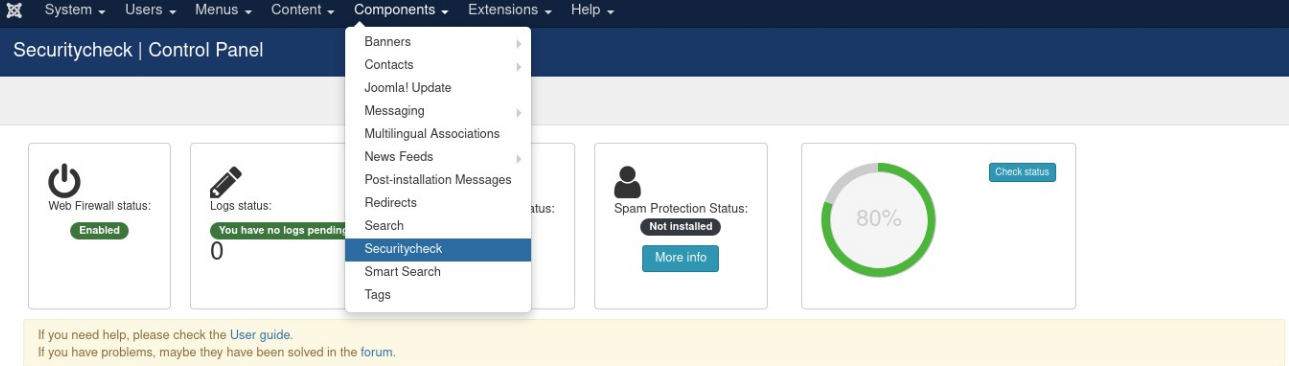
- Verificar vulnerabilidades en los complementos.

[![VerificarVulnerabilidades.png](https://www.cgii.gob.bo/bookstack/uploads/images/gallery/2023-03/scaled-1680-/ZIcoVOT6XL4x5wg3-verificarvulnerabilidades.png)](https://www.cgii.gob.bo/bookstack/uploads/images/gallery/2023-03/ZIcoVOT6XL4x5wg3-verificarvulnerabilidades.png)
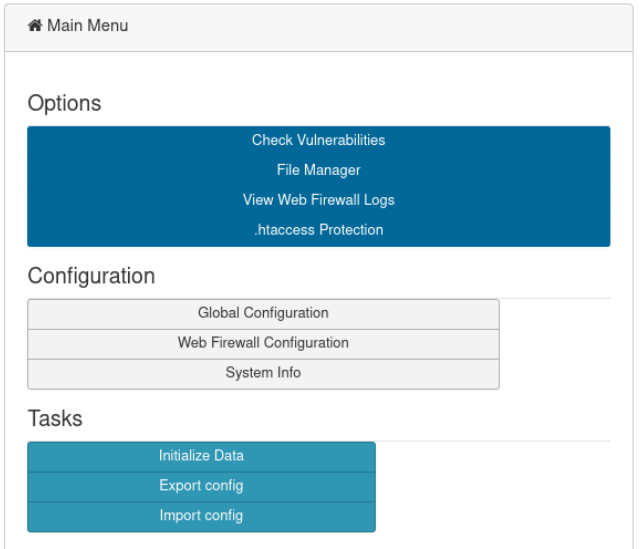
- La columna de “Known vulnerabilities” de todos los complementos listados debe estar en estado “No”.

[![Known vulnerabilities.png](https://www.cgii.gob.bo/bookstack/uploads/images/gallery/2023-03/scaled-1680-/0XcruLfGFovdIa8X-known-vulnerabilities.png)](https://www.cgii.gob.bo/bookstack/uploads/images/gallery/2023-03/0XcruLfGFovdIa8X-known-vulnerabilities.png)
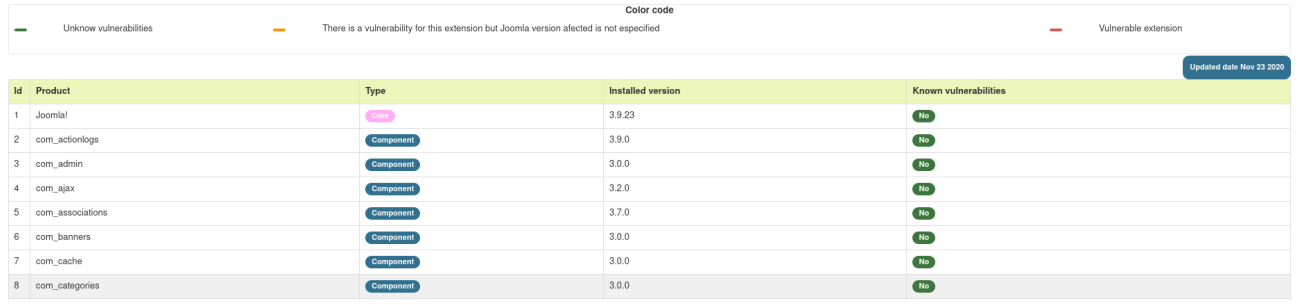
Se recomienda suscribirse a canales de seguridad oficiales de Joomla, por ejemplo:

- [https://docs.joomla.org/Security\_hotfixes\_for\_Joomla\_EOL\_versions/es](https://docs.joomla.org/Security_hotfixes_for_Joomla_EOL_versions/es)
- [https://developer.joomla.org/security-centre.html](https://developer.joomla.org/security-centre.html)

Siempre debe mantener actualizado Joomla a una versión con soporte.  
  
También se recomienda que se considere actualizar las tecnologías complementarias para el uso de Joomla como es php, mysql y el sistema operativo, tomando en cuenta que estas actualizaciones sean compatibles con la versión de Joomla que utiliza, aplicando estos cambios primero en un entorno de pruebas.

##### 2.2. Asegurar nombre de usuario y contraseña

- No utilizar el nombre de usuario admin predeterminado.
- Utilizar una contraseña robusta, por ejemplo, que contenga mayúsculas, minúsculas, cifras y caracteres especiales.
- Configurar la robustez de la contraseña, para ello se debe ingresar a Users &gt; Manage:

[![ConfiugraciondeUsusario.png](https://www.cgii.gob.bo/bookstack/uploads/images/gallery/2023-03/scaled-1680-/ZZUnyoQSWrToyW6l-confiugraciondeususario.png)](https://www.cgii.gob.bo/bookstack/uploads/images/gallery/2023-03/ZZUnyoQSWrToyW6l-confiugraciondeususario.png)

- Seleccionar Options:

[![Options.png](https://www.cgii.gob.bo/bookstack/uploads/images/gallery/2023-03/scaled-1680-/WlrSKLfrhonJcuha-options.png)](https://www.cgii.gob.bo/bookstack/uploads/images/gallery/2023-03/WlrSKLfrhonJcuha-options.png)

- En password options establecer:

[![EstablecerCOntraseña.png](https://www.cgii.gob.bo/bookstack/uploads/images/gallery/2023-03/scaled-1680-/hxs6zEn0zTI6K9aW-establecercontrasena.png)](https://www.cgii.gob.bo/bookstack/uploads/images/gallery/2023-03/hxs6zEn0zTI6K9aW-establecercontrasena.png)
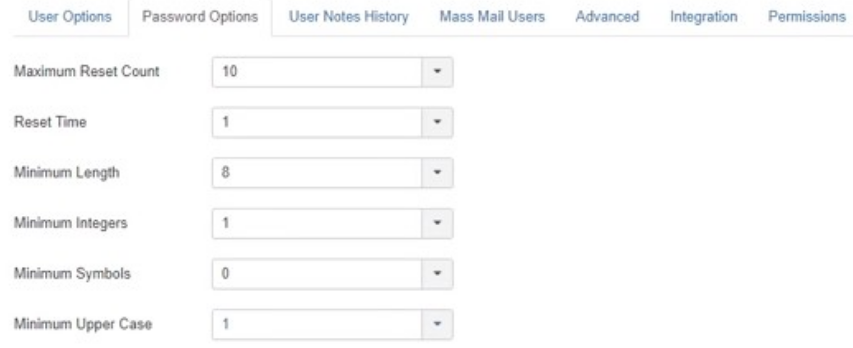
- Guardar y cerrar:

[![GuardaryCerrar.png](https://www.cgii.gob.bo/bookstack/uploads/images/gallery/2023-03/scaled-1680-/UQiDXusmmrYe64nH-guardarycerrar.png)](https://www.cgii.gob.bo/bookstack/uploads/images/gallery/2023-03/UQiDXusmmrYe64nH-guardarycerrar.png)
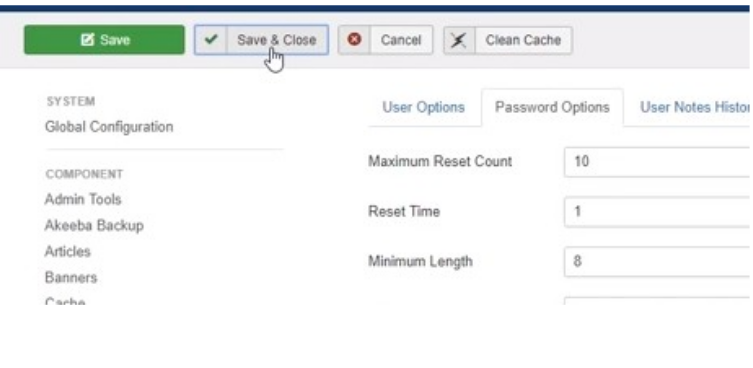
##### 2.3. Proteger el archivo de configuración

Proteger el archivo configuration.php, que se encuentra en el directorio raíz de la instalación de Joomla con apache, para impedir que se pueda editar.

- Activar el módulo htaccess:

```bash
$ sudo nano /etc/apache2/apache2.conf
```

- Buscar las líneas:

```bash
<Directory /var/www/>
	Options Indexes FollowSymLinks
	AllowOverride None
	Require all granted
</Directory>
```

Cambiar a:

```bash
<Directory /var/www/>
	Options FollowSymLinks
	AllowOverride All
	Require all granted
</Directory>
```

- Reiniciar servidor de apache:

```bash
$ sudo service apache2 restart
```

- Añadir al archivo .htaccess:

```bash
<FilesMatch “configuration.php”>
	Require all denied
</FilesMatch>
```

- Cambiar los permisos considerando:

Archivos PHP - 644  
Archivos de configuración - 644  
configuration.php: 440  
Otras carpetas - 755

##### 2.4. Proteger el acceso al panel de administrador

Por defecto el panel de administrador de Joomla se encuentra en la url “/administrator” de la página. Para evitar que personas no autorizadas intenten acceder al panel de administración seguir los siguientes pasos:

- Crear un directorio que únicamente conozcan los usuarios administradores del sitio web (debe recordar que el directorio miotroadm es solo un ejemplo).

```bash
$ sudo mkdir miotroadm
```

- Crear un archivo index.php para redireccionar al panel de administración, cambiar la cookie “admin\_cookie\_code” por una más larga y difícil de adivinar.

---

```bash
$ cd miotroadm
$ sudo nano index.php
```

```php
<?php
	$admin_cookie_code="1254789654258"
	setcookie("JoomlaAdminSession",$admin_cookie_code,0,"/");
	header("Location: ../administrator/index.php");
?>
```

- Adicionar al principio del index.php del directorio “administrator” que solicite la cookie, caso contrario devolver al index.php

```bash
$ sudo nano administrator/index.php
```

```php
if($_COOKIE['JoomlaAdminSession']!="1254789654258")
{
	setcookie('JoomlaAdminSession', null, -1, '/');
	header("Location: ../../index.php");
}
```

- Añadir al final en el index.php del panel de administración el siguiente comando para eliminar la cookie creada.

```bash
$ sudo nano index.php
```

```php
if ($_COOKIE['JoomlaAdminSession']!="")
{
	setcookie('JoomlaAdminSession', null, -1, '/');
}
```

##### 2.5. Ocultar la versión de Joomla

Deberá deshabilitar manualmente ingresando al panel de administración de joomla:

Site &gt; Global Configuration

Establecer en “No” la opción “Show Joomla Version”.

Adicionalmente, deberá eliminar la carpeta “installation” ubicada en el directorio raíz de la instalación de Joomla.

##### 2.6. Activar search engine friendly (sef)

SEF permite hacer las URLs de Joomla más amistosas para el usuario y también dificulta a los escáneres automatizados encontrar información útil para efectuar ataques al sitio web.

Para activar SEF en Joomla debe acceder al panel de administración e ingresar a “Global Configuration”.

Establecer la opción Search Engine Friendly URLs en “Yes”:

[![SEF.png](https://www.cgii.gob.bo/bookstack/uploads/images/gallery/2023-03/scaled-1680-/QjVpKE1pGyG2Rk8N-sef.png)](https://www.cgii.gob.bo/bookstack/uploads/images/gallery/2023-03/QjVpKE1pGyG2Rk8N-sef.png)
##### 2.7. Realizar copia de seguridad

Para realizar la copia de seguridad de Joomla puede utilizar el plugin Akeeba Backup.

- Instalar el plugin siguiendo el enlace:

[https://extensions.joomla.org/extension/akeeba-backup/](https://extensions.joomla.org/extension/akeeba-backup/)

- Una vez instalado ir al menú Components&gt;Akeeba Backup

[![RealizarCopiaDeSeguridad.png](https://www.cgii.gob.bo/bookstack/uploads/images/gallery/2023-03/scaled-1680-/fU5HRGR7maADEOkt-realizarcopiadeseguridad.png)](https://www.cgii.gob.bo/bookstack/uploads/images/gallery/2023-03/fU5HRGR7maADEOkt-realizarcopiadeseguridad.png)

- Hacer clic en “Default Backup Profile” para sacar la copia de seguridad de Joomla.

[![DefaultBackupProfile.png](https://www.cgii.gob.bo/bookstack/uploads/images/gallery/2023-03/scaled-1680-/6nCrT7TNfm2GJpf8-defaultbackupprofile.png)](https://www.cgii.gob.bo/bookstack/uploads/images/gallery/2023-03/6nCrT7TNfm2GJpf8-defaultbackupprofile.png)
- Se despliega el proceso de backup

[![DespliegueBackup.png](https://www.cgii.gob.bo/bookstack/uploads/images/gallery/2023-03/scaled-1680-/7GUwbDW7S0JprtyV-desplieguebackup.png)](https://www.cgii.gob.bo/bookstack/uploads/images/gallery/2023-03/7GUwbDW7S0JprtyV-desplieguebackup.png)
- Los backups se muestran en Manage Backups.

[![ManageBackups.png](https://www.cgii.gob.bo/bookstack/uploads/images/gallery/2023-03/scaled-1680-/7OeuYwYOxpeOrV0m-managebackups.png)](https://www.cgii.gob.bo/bookstack/uploads/images/gallery/2023-03/7OeuYwYOxpeOrV0m-managebackups.png)
- Se muestra el listado de backups generados.

[![BackupsGenerados.png](https://www.cgii.gob.bo/bookstack/uploads/images/gallery/2023-03/scaled-1680-/XEr67w1zYuYfhxr6-backupsgenerados.png)](https://www.cgii.gob.bo/bookstack/uploads/images/gallery/2023-03/XEr67w1zYuYfhxr6-backupsgenerados.png)
- Establecer copias de respaldo cada cierto tiempo de acuerdo a las políticas de seguridad.

# Enumeración de Usuarios en WordPress

#### ¿Qué es la enumeración de usuarios?

La enumeración de usuarios, es una forma de obtener datos de usuarios de su sitio web a través de scripts maliciosos. Aunque el pirata informático solo puede obtener los detalles del nombre de usuario con esto, sigue siendo un riesgo grave. Conocer el nombre de usuario es la mitad del trabajo realizado por un pirata informático al ejecutar un ataque de fuerza bruta.

##### Método 1: Archivos de autor

Quizás el método más fácil para encontrar nombres de usuario de WordPress es revisar los archivos del autor. Para enumerar nombres de usuario a través del método de archivos del autor. Para enumerar nombres de usuario a través del método de archhivos de autor, simplemente agregue un número entero (es decir: 1,2,3,etc.) como valor al parámetro "autor". Por ejemplo:

- [https://tusitio.com/?author=1](https://tu)
- [https://tusitio.com/?author=2](https://tu)
- [https://tusitio.com/?author=3](https://tu)

Estos valores luego obtendrían resultados como los siguientes:

- [https://tusitio.com/author/admin/](https://tu)
- [https://tusitio.com/author/user2/](https://tu)
- [https://tusitio.com/author/user3/](https://tu)

Por lo tanto, al confundir el autor del parámetro en la URL de inicio de WordPress, se pueden enumerar varios nombres de autor.

##### Método 2: Mensajes de error

A veces, el atacante intenta iniciar sesión en su sitio de WordPress con un nombre de usuario aleatorio. Si el nombre de usuario existe, el mensaje de error revelará que el nombre de usuario es correcto pero la contraseña es incorrecta. De manera similar, si el nombre de usuario adivinado es incorrecto, el mensaje de error especificaría que el nombre de usuario no existe. Ahora, al utilizar el enfoque de fuerza bruta, el atacante puede enumerar nombres de usuario en función de los mensajes de error.

[![MensajeDeErrorLogin.png](https://www.cgii.gob.bo/bookstack/uploads/images/gallery/2023-04/scaled-1680-/gksOVq8J9wXRntCv-mensajedeerrorlogin.png)](https://www.cgii.gob.bo/bookstack/uploads/images/gallery/2023-04/gksOVq8J9wXRntCv-mensajedeerrorlogin.png)
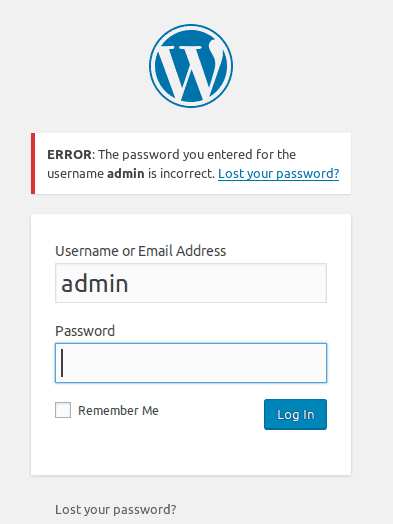
El mensaje de error revela el nombre de usuario como "admin" se encuentra registrado como usuario del sistema.

#### Solución a la enumeración de usuarios

Aplique una de las siguientes opciones para evitar la enumeración de usuarios en WordPress (preferente la opción 1):

##### 1. Instalación de WP-Hardening

1. Instalar y activar el complemento. 
    1. Ir a ‘Plugins &gt; Add New’ en el panel de administración.
    2. Buscar ‘WP-Hardening’
    3. Instalar WP-Hardening una vez que aparezca.
    4. Activarlo desde su página Plugins.
    5. El botón WP-Hardening aparecerá en la parte inferior izquierda de su panel de administración.
2. Ir a la pestaña 'Security Fixers'  
    [![SecurityFixers.png](https://www.cgii.gob.bo/bookstack/uploads/images/gallery/2023-04/scaled-1680-/ZAPznkududQsULl1-securityfixers.png)](https://www.cgii.gob.bo/bookstack/uploads/images/gallery/2023-04/ZAPznkududQsULl1-securityfixers.png)
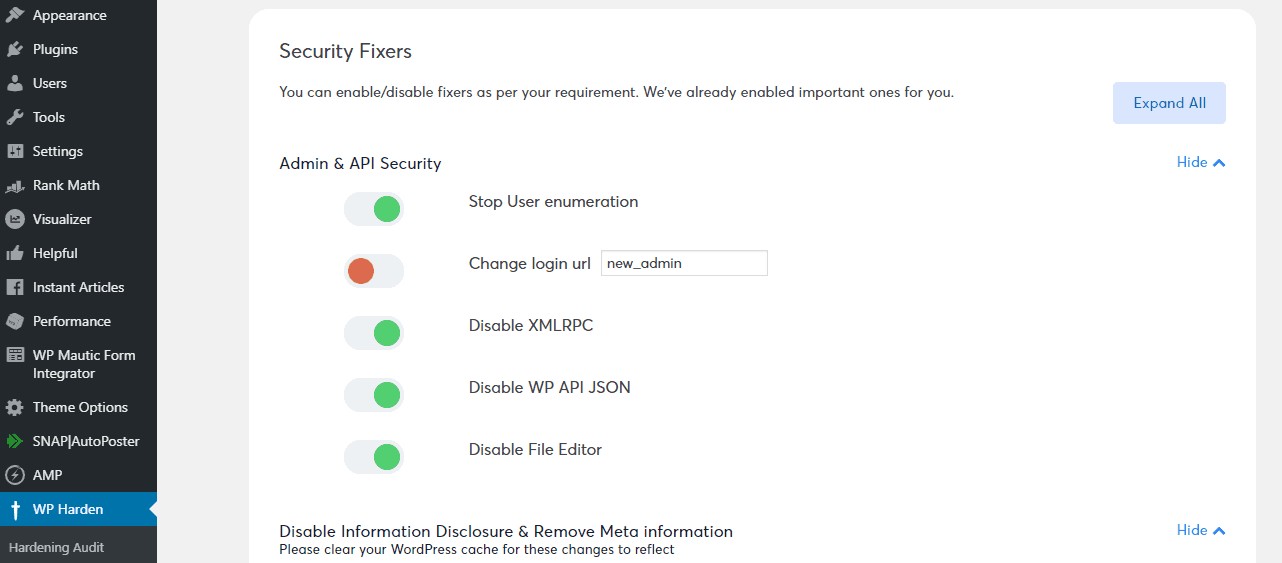
3. Mover la tecla junto a "Stop User enumeration"  
    [![StopUserEnumeration.png](https://www.cgii.gob.bo/bookstack/uploads/images/gallery/2023-04/scaled-1680-/gVHC8QHMgyEBALyY-stopuserenumeration.png)](https://www.cgii.gob.bo/bookstack/uploads/images/gallery/2023-04/gVHC8QHMgyEBALyY-stopuserenumeration.png)
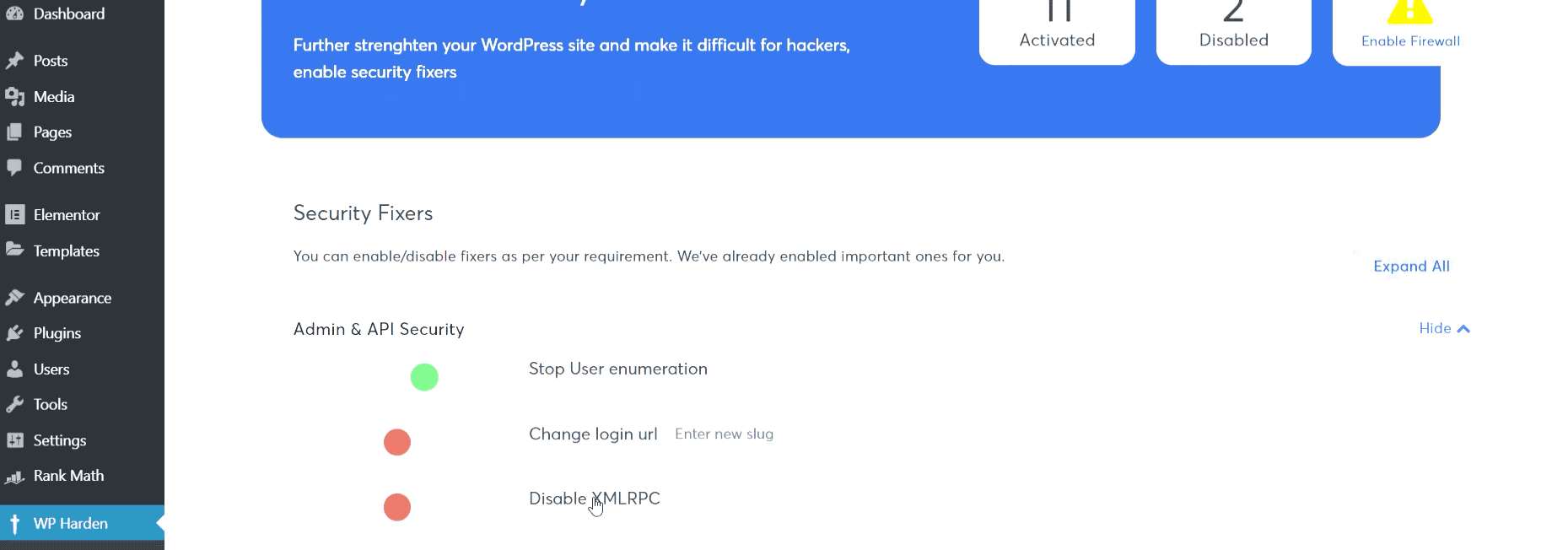
##### 2. Editando archivos de WordPress

Agregando un fragmento de código al archivo functions.php o al archivo .htaccess en el nivel raíz. El archivo .htaccess debe editarse solo si desea bloquear la solicitud a nivel del servidor.

Método 1: Modificar el archivo functions.php.

- Paso 1: Inicie sesión en el panel de administración de su servidor donde pueda acceder a los archivos.
- Paso 2: Navegar hasta el directorio de instalación de WordPress:  
    Ir a wp-content&gt;themes  
    Buscar el archivo functions.php
- Paso 3: Abrir el archivo functions.php y copiar el siguiente código:

```php
if (!is_admin()) {
// default URL format
if (preg_match('/author=([0-9]*)/i', $_SERVER['QUERY_STRING'])) die(); add_filter('redirect_canonical', 'shapeSpace_check_enum', 10, 2);
}
function shapeSpace_check_enum($redirect, $request) {
// permalink URL format
if (preg_match('/\?author=([0-9]*)(\/*)/i', $request)) die(); else return $redirect;
}
```

Método 2: Modificar el archivo .htaccess.

- Paso 1: Iniciar sesión en el servidor como administardor.
- Paso 2: En el administrador de archivos, busque el archivo .htaccess en la raíz de su servidor.
- Paso 3: Abrir el archivo .htaccess y copie el siguiente código:

```xml
<IfModule mod_rewrite.c>
RewriteCond %{QUERY_STRING} ^author=([0-9]*)
RewriteRule .* https://tusitioweb.com/? [L,R=302]
</IfModule>
```

##### 3. Eliminar los mensajes de error en páginas de inicio de sesión

Para eliminar los mensajes de error detallados en la ventana de wp-login, debe ingresar el siguiente código en el archivo **functions.php** (Nota.- En caso de funcionar esta solución puede aplicar el código en el archivo **wp-login.php**):

```php
<?php
//* NO incluyas la etiqueta de apertura

// Cambia el mensaje de error de inicio de sesión en WordPress
 
function failed_login() {
    return 'Las credenciales de acceso son incorrectas.';
}
add_filter('login_errors', 'failed_login');
```

[![EliminacionLosMensajesDeError.png](https://www.cgii.gob.bo/bookstack/uploads/images/gallery/2023-04/scaled-1680-/LzvUEMEk81Kf6MAK-eliminacionlosmensajesdeerror.png)](https://www.cgii.gob.bo/bookstack/uploads/images/gallery/2023-04/LzvUEMEk81Kf6MAK-eliminacionlosmensajesdeerror.png)